How to Use Spotify with a Mixer: A Practical Guide
Learn how to route Spotify audio through a hardware mixer, balance levels, and monitor like a pro. This step-by-step guide from Mixer Accessories covers cables, routing, safety, and troubleshooting for home DJs, bartenders, and audio hobbyists.


Learn how to route Spotify audio through a hardware mixer and set up safe, clean levels for live mixing or practice. You’ll need a mixer with line inputs, a playback device (phone or computer), and the appropriate cables to connect audio. This guide walks you through each step from connection to monitoring.
Why use Spotify with a hardware mixer? A practical overview
If you’re a home DJ, bar enthusiast, or audio hobbyist who relies on Spotify for music discovery, learning how to use spotify mixer with a physical mixer can give you real control over levels, EQ, and dynamics. According to Mixer Accessories, routing Spotify audio through a mixer lets you blend source material with other inputs, apply effects, and monitor in real time. This approach is ideal for practice sessions, small gigs, or streaming setups where you want a tactile, hands-on feel. The core idea is simple: treat Spotify as one input among several, then balance it against microphones, turntables, or sample players. The result is a cohesive, dynamic mix rather than a single-stream playback. Keep in mind that public performances using Spotify may require licensing considerations, so plan for local use, private events, or proper venue rights. In this guide, we’ll cover practical setup, reliable routing, level management, and safety considerations to help you get started quickly and safely with your own gear.
What you’ll learn and why it matters
- How to connect a Spotify playback source to a mixer without introducing noise or latency
- How to set gain staging so Spotify sits cleanly in the mix
- How to monitor effectively with headphones or studio monitors
- How to troubleshoot common problems like no sound, distortion, or channel masking
Whether you’re building a home setup for casual listening, hosting small gatherings, or streaming a live set, getting Spotify into your mixer is a valuable skill that adds precision and control to your mixes. The guidance here aims to be practical, actionable, and free of excessive jargon, so you can start mixing with confidence from day one.
Safety and licensing considerations when mixing Spotify
- Always respect content licenses and venue rights when playing music publicly. Spotify’s terms govern how streams are used outside private listening, so verify whether your use qualifies as private practice or requires a performance license.
- Use headphones or monitors at safe listening levels to protect your hearing during long sessions. A quick check is to keep SPL (sound pressure level) within comfortable ranges and avoid sustained peak levels.
- Keep your setup organized and cable-free where possible. A tidy workspace reduces noise, avoids accidental unplugging, and makes it easier to locate inputs during a live session.
Basic signal theory you should know
- Source -> Playback Device -> Audio Interface/Mixer -> Monitoring
- Spotify outputs a line-level signal; your mixer channels must be configured to accept line-level inputs to avoid clipping.
- Proper gain staging is essential: too low invites noise, too high causes distortion. Aim for peak meters around -6 dB to -3 dB on the mixer’s master or channel meters during loud sections.
Common setup patterns for different gear configurations
- Pattern A: Analog mixer with line inputs and no USB audio interface. Connect Spotify’s output to a stereo channel using 3.5 mm to dual 1/4" TS/RCA cables. Balance gain on the channel and master, then monitor via headphones.
- Pattern B: Mixer with USB audio interface. Route Spotify through a single stereo track on your computer or tablet, then select the USB input on the mixer as the source. This reduces cable clutter and can improve latency handling.
- Pattern C: All-in-one DJ controllers with Spotify compatibility. Use the controller’s line inputs for Spotify and manage levels using built-in EQ and effects, keeping inputs separated for clean crossfades.
Practical caveats and quick-start checklist
- Gather cables that fit your mixer’s inputs (RCA, TRS, or USB). 2) Ensure your playback device and mixer share compatible output levels. 3) Start with Spotify at a low volume and gradually increase to taste. 4) Use headphones to audition levels before engaging the main monitors. 5) Label inputs so you never mix the wrong source in a live setting.
Tools & Materials
- Audio mixer with line inputs(Prefer a mixer with USB audio interface or stereo line inputs)
- Spotify-enabled playback source(Smartphone, tablet, or computer with Spotify app)
- Cables: RCA-to-RCA or 3.5mm-to-1/4" TRS(Choose cables that match your mixer inputs)
- Audio interface (optional)(Use if your mixer lacks USB or if you prefer digital routing)
- Headphones or studio monitors(For accurate monitoring and safe listening levels)
- Cable management(Optional but helps keep setup neat and reduces noise)
Steps
Estimated time: 30-60 minutes
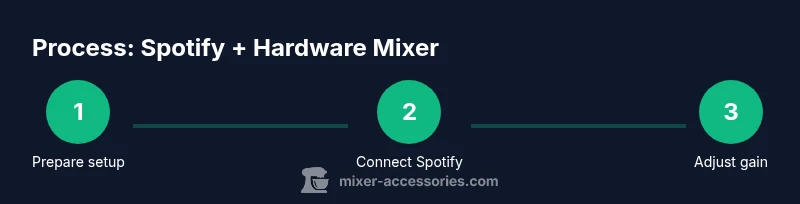
- 1
Prepare and power up
Power on your mixer, playback device, and any monitoring gear. This ensures all equipment initializes properly and prevents sudden volume surges when you start routing audio.
Tip: Double-check that the playback device is set to a safe, low volume before connecting to the mixer. - 2
Connect Spotify to the mixer
Plug the playback device’s output into the mixer’s line input using the appropriate cables. If your mixer supports USB, you can route Spotify digitally via the USB input to reduce noise.
Tip: If using analog cables, keep cables away from power chords to minimize hum. - 3
Configure input channel
Select the correct input channel on the mixer for the Spotify source. Set the channel’s gain so the level stays clean without clipping.
Tip: Use the channel’s peak meter as your guide; aim for occasional peaks around -3 dB. - 4
Set master and monitor levels
Adjust the master output and headphones/monitor levels to a comfortable listening range. Verify the balance with a test track and make fine adjustments.
Tip: Always check both headphones and main monitors to avoid surprises on the audience side. - 5
Test crossfading and EQ
If you’re combining Spotify with other sources, test the crossfader and channel EQ to ensure smooth transitions without mud.
Tip: Start with mild EQ curves; aggressive boosts can create feedback or harsh highs. - 6
Record or stream a test mix
Record a short practice mix or stream to verify your levels and routing in real time. This helps validate your setup before a live session.
Tip: Listen back critically; a second pair of ears (friend or colleague) helps identify issues you miss. - 7
Troubleshoot common issues
If you hear no sound or distortion, recheck connections, input gains, and device routing. Latency is common with some USB paths; adjust buffer sizes if available.
Tip: If distortion occurs, lower the input gain first, then increase master gain as needed. - 8
Document your settings
Save or note down your preferred Spotify routing, gain settings, EQ, and effects chain for quick recall at future sessions.
Tip: Create a simple one-page guide for quick setup before gigs.
Your Questions Answered
Can I use Spotify with a hardware mixer?
Yes. You can route Spotify audio into a mixer to control levels and blend with other sources. Setup depends on your gear, but the general approach is to connect the playback device to a line input and balance the channel.
Yes. You can route Spotify into a mixer to control levels with other sources. The setup varies by gear, but it follows a straightforward path from playback device to line input on the mixer.
What do I need to get started?
You’ll need a mixer with line inputs (or USB audio), a playback device with Spotify, and the appropriate cables to connect. Headphones or monitors are essential for safe, accurate monitoring.
You’ll need a mixer with line inputs, a Spotify-enabled device, and the proper cables. Don’t forget headphones or monitors for accurate listening.
Should I use Bluetooth or a wired connection?
Wired connections are preferred for reliability and lower latency. Bluetooth can work, but latency and compression may affect timing in a live mix.
Wired is usually better for timing and stability. Bluetooth can work but may introduce delays and quality loss.
Can I mix Spotify with other sources like mic or DJ software?
Yes. Treat Spotify as another channel and route it alongside microphones or other audio sources. Use the mixer’s crossfader and EQ to balance everything smoothly.
Absolutely. Route Spotify as another channel and balance it with mics or software; crossfader and EQ help you blend smoothly.
Is there a risk of copyright issues when mixing Spotify publicly?
Public performances of Spotify tracks may require licenses beyond private listening. Check local regulations and consider venue rights when streaming to an audience.
Public performances might need licenses beyond private listening. Check local rules and the venue’s rights when streaming.
What if I hear latency or distortion?
Latency is common with certain USB paths; adjust buffer size if possible. Distortion usually means too much gain—lower the input gain first and retune.
Latency can show up on some USB paths; adjust buffer sizes. If there’s distortion, back off the input gain and retune.
Watch Video
Top Takeaways
- Plan your routing before playback.
- Set gain to prevent clipping and noise.
- Monitor with headphones for accurate mixing.
- Respect licensing when public playback is involved.
- Keep cables organized to reduce noise and trips.