How to Use a Mixer on Apple Music
Learn how to connect and use your audio mixer with Apple Music for seamless playback, blending, and monitoring. This practical guide covers gear, routing, latency, and troubleshooting for home studios and bars.


You can route Apple Music playback through a mixer to blend tracks, apply effects, and build seamless transitions in live or home setups. This guide covers compatible gear, step-by-step setup, and practical tips so you can mix Apple Music with any external input while preserving audio quality. We'll address macOS/iOS routing, USB audio interfaces, software mixers, latency considerations, and safe practice to avoid output issues.
Why using a mixer with Apple Music can unlock new vibes
According to Mixer Accessories, routing Apple Music through a mixer provides hands-on control over volume, panning, and effects, letting you blend tracks from Apple Music with live inputs or other media sources. This approach is popular among home cooks who stream playlists while cooking, bar enthusiasts mixing ambient tracks for a drink service, and audio hobbyists who enjoy live mashups. By routing through a mixer, you can sculpt the sound, create dynamic transitions, and protect your main output with separate monitor channels. The goal is to keep the integrity of the digital stream while giving yourself the tactile control that hardware offers.
In practice, you’ll set up a signal path that carries Apple Music into the mixer’s input channels and route the mixer’s main outputs to monitors or speakers. The Mixer Accessories team found that clear labeling and a predictable routing path greatly reduce setup time and mistakes during busy service moments or recording sessions.
Essential gear and compatibility
Choosing the right gear is the fundamental first step. At minimum, you’ll need a mixer with at least two input channels and an option to route either line-in or USB audio. A USB audio interface can make routing more reliable, especially when you’re using a Mac or iPhone. The gear should expose line-level inputs for Apple Music and allow direct monitoring to avoid feedback loops. Mixer Accessories analysis shows that USB interfaces tend to offer more stable latency and simpler driver management when used with Apple devices. Plan for quality cables (TRS or XLR) and label them clearly to keep the workflow smooth across gigs or long practice sessions.
Be mindful of the environment: if you’re performing in a bar or cafe, you’ll want robust cables, properly grounded outputs, and a quick-access routing shortcut for changes on the fly. A dependable setup minimizes disruptions and preserves audio fidelity during live playback.
Understanding audio routing basics for Apple Music
The core concept is straightforward: Apple Music plays back on your device, that audio is then routed through your OS to an interface or mixer input, and finally out to speakers or monitors. The signal path typically looks like this: Apple Music app -> OS audio driver -> USB audio interface or mixer input -> mixer outputs -> monitors. Efficient routing keeps latency low and ensures mono/stereo balance remains accurate. For many users, this means configuring a single USB interface that handles both the computer’s output and the mixer’s input, while keeping a separate monitor channel for reference.
Think about channel labeling, input gain staging, and monitoring paths early in your planning. It helps to sketch a simple diagram of your route and test each link before you start mixing in earnest.
Choosing the right hardware setup
There are two common paths. Path A uses a mixer with built-in USB/audio interface capabilities, which minimizes devices between your computer and the mixer and reduces potential latency. Path B uses a standalone USB interface plus a traditional analog mixer; this gives you greater channel count and flexibility but adds a layer of routing to manage. Your decision should consider your available space, desired channel count, and whether you need separate monitoring outputs for performers. In either path, aim for clean analog signs (unbalanced vs balanced) and ensure your cables match the expected input types on the mixer and interface. Routing consistency helps avoid signal degradation and noise.
From a reliability standpoint, Path A is often preferable for quick setups, while Path B provides room to expand with external effects, multi-channel playback, or live DJ elements. Mixer Accessories notes that consistency in how you route Apple Music reduces setup time and helps you reproduce good results across sessions.
Getting Apple Music into your mixer via USB or line-in
The most straightforward approach is to feed Apple Music through a USB audio interface into the mixer’s line inputs. If your mixer has a built-in audio interface, you can route Apple Music directly into the mixer via USB, then use the mixer’s main outputs to drive monitors. If you’re using a separate interface, connect the interface’s main output to a stereo input on the mixer. In either case, ensure you select the correct input channel on the mixer and keep the Apple Music stream unbroken by avoiding clipping on the channel gain.
Label each connection and keep spare cables accessible. It’s also wise to use balanced cables where possible to minimize hum and interference in busy environments. This approach helps maintain clean signal flow from digital playback to analog mixing.
Configuring your computer and iOS devices for low-latency monitoring
Latency is the major concern when mixing Apple Music with hardware. Start by selecting the correct audio device in your operating system’s sound settings, choosing the USB interface or mixer input as the default playback device. If your OS supports it, create a dedicated aggregate or multi-output device that routes to both your listening monitor and your mixing path, ensuring you don’t experience feedback loops. In macOS, Audio MIDI Setup can help create such routes and set a stable sample rate.
Adjust buffer sizes in your DAW or audio interface control panel to balance latency and CPU load. Lower buffer sizes reduce latency but may cause glitches if your computer is under heavy load. If your hardware supports direct monitoring, enable it to further reduce latency for the performer monitoring the Apple Music playback. Always run a quick test with a familiar track to verify the monitoring path is clean.
Step-by-step setup overview
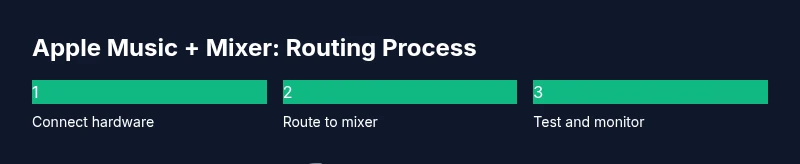
A high-level overview of the setup process helps you plan before you dive in. First, gather and label all gear to prevent mixups during busy sessions. Next, connect the Apple Music output to the interface input, and route the interface to the mixer’s line input(s). Then, configure your computer’s audio routing so Apple Music plays through the chosen device. Set your mixer’s output to your monitors and adjust the monitoring path. Finally, test with a few tracks and create a simple preset for Apple Music routing so you can recall the configuration quickly in the future.
Monitoring and safety for Apple Music mixing
Your monitoring plan should prioritize safe listening levels and consistent monitoring with a quick reference for peak voltages. Use the mixer’s meters to keep levels in a healthy range and avoid clipping. If you’re mixing in a live environment, consider a separate control room monitor and a dedicated booth monitor to avoid acoustic feedback and stage spill. Label all channels and use color-coding to avoid confusion during fast-paced sessions. Regularly check cables and connectors for wear to prevent unexpected dropouts.
Troubleshooting common issues
If Apple Music playback disappears, verify the OS routing and ensure the correct playback device is selected. If you hear hum or noise, check for ground loops, try shorter cables, or switch to balanced connections where available. Latency causing timing issues can usually be traced to buffer size or CPU load; restarting the audio service or reducing load can help. If Apple Music updates alter routing behavior, re-check the OS settings and re-apply the intended routing. Keeping a short, written checklist for your specific setup minimizes downtime during gigs.
Creative tips for mixing Apple Music with a mixer
Experiment with short segues between Apple Music tracks and your live inputs to create a cohesive vibe. Use the mixer’s EQ and effects to sculpt highs for clarity, mids for presence, and lows for warmth. Consider creating a dedicated Apple Music cue channel that you can quickly mute or re-route for transitions. Labeling and preset management are crucial for consistent results across sessions. A little planning goes a long way toward producing DJ-like transitions with your favorite Apple Music playlists.
Quick recap and next actions
After you’ve set up the routing, test with multiple playlists to validate the signal path. Document your preferred input channels for Apple Music and save a routing preset for future sessions. Regular checks of cables and connections will prevent unexpected audio dropouts. With the right setup, you’ll be able to blend Apple Music with live inputs smoothly and confidently.
Final note on practice and growth
Take time to refine your routing, monitor levels, and phrasing for transitions. Small improvements in gain staging and cue management translate into noticeably better sound quality over time. The process becomes faster as you build muscle memory for your exact gear configuration.
Tools & Materials
- Audio mixer with at least 2 line inputs(Prefer a mixer with dedicated monitor/rec out for easy routing)
- USB audio interface(Helps route computer playback into the mixer with stable latency)
- USB cable (type matching your interface)(Used to connect computer to interface)
- 2x 1/4" TRS or XLR cables(Connect interface outputs to mixer inputs or mixer to monitors)
- Apple Music capable device (iPhone/iPad/Mac)(Source of playback; ensure the latest app is installed)
- Monitors or wired headphones(For accurate listening and monitoring)
- Labeling supplies (masking tape, markers)(Helpful to keep signal paths clear)
Steps
Estimated time: 60-90 minutes
- 1
Prepare and label your gear
Gather your mixer, USB interface, and cables. Label each cable and input so you know what feeds Apple Music and what feeds your live inputs. This reduces setup time and mistakes during busy sessions.
Tip: Label color-coded cables to quickly identify Apple Music routes. - 2
Connect hardware paths
Connect the computer or iOS device to the USB interface, and route the interface outputs to the mixer’s line inputs. If your mixer has USB audio capability, you can use that path instead for a cleaner signal chain.
Tip: Use balanced cables where possible to minimize hum and interference. - 3
Configure OS audio routing
Open your OS audio settings and set the USB interface (or mixer USB path) as the default output. On macOS, you may create a multi-output device to route to both monitors and the mixer inputs.
Tip: Test playback with a short Apple Music sample to confirm routing. - 4
Set up monitoring paths
Enable monitoring on the mixer and/or interface. Route one output to your main monitors and another to a cue/monitor bus for safe, latency-friendly listening.
Tip: Enable direct monitoring if your interface supports it to minimize latency. - 5
Test and level-stage Apple Music
Play a track from the Apple Music app and adjust channel gains so you avoid clipping. Balance Apple Music with any live inputs so no source dominates the mix.
Tip: Start with modest levels and increase gradually to avoid surprises. - 6
Save routing presets
If your gear supports it, save preset routing for Apple Music so you can recall it quickly in future sessions.
Tip: Document your settings for fast recall during live use. - 7
Validate in a real scenario
Test the complete setup during a practice run or a live session to verify all paths, levels, and cues function as intended.
Tip: Do a final check with a playlist similar to your typical usage. - 8
Troubleshoot and refine
If you encounter hum, latency, or dropouts, review cable quality, input gain, and OS routing settings. Iterate until the path is stable.
Tip: Keep a small checklist handy for quick fixes.
Your Questions Answered
Can I route Apple Music through a consumer mixer without a dedicated audio interface?
In most cases you still need a way to route computer audio into the mixer, typically via a USB audio interface or a mixer with built-in USB audio. Without this, Apple Music won’t feed signal into the mixer. A proper interface also helps manage latency and monitoring.
Usually you need a USB audio interface or a mixer with USB so Apple Music can feed into the mixer. Without a dedicated path, you won’t get reliable routing.
Do I need macOS to route Apple Music to a mixer?
Not strictly. You can route from Windows or macOS using system audio routing. macOS provides convenient tools like Audio MIDI Setup for creating multi-output devices, but Windows users can still route via drivers and software mixers. The key is a stable route from the device running Apple Music to the mixer.
You can route from either macOS or Windows, as long as you have a proper audio path to the mixer.
Will using Apple Music with a mixer affect audio quality?
If you maintain clean signal paths, avoid clipping, and use quality cables and interfaces, the digital stream from Apple Music should preserve its fidelity through the mixer. Latency and rounding errors may affect timing, but sound quality remains high when routed properly.
With a good path and proper levels, Apple Music quality stays strong through the mixer.
What latency should I expect when mixing Apple Music with a mixer?
Latency depends on your interface, computer performance, and buffer settings. Lower buffers reduce latency but can increase CPU load. Use direct monitoring if available and test with a familiar track to set a comfortable latency level.
Latency varies by hardware; test and adjust settings to find a comfortable balance.
Can I use Bluetooth headphones when mixing Apple Music with a mixer?
Bluetooth adds significant, variable latency and compression, which can ruin timing during mixing. For accurate monitoring, use wired monitors or wired headphones connected to the mixer or interface.
Bluetooth isn’t ideal for mixing; stick to wired monitoring for accuracy.
What should I do if Apple Music updates break my routing?
Software updates can reset audio routing settings. After an update, re-check your OS routing choices, reselect the proper playback device, and confirm your Apple Music path still points to the mixer.
If an update changes routing, just recheck and reselect your audio path.
Watch Video
Top Takeaways
- Plan your routing before connecting gear.
- Use a dedicated interface for stable latency.
- Enable and test direct monitoring where possible.
- Create and save a routing preset for Apple Music.
- Monitor levels to prevent clipping.