How to Mix on Spotify PC: A Practical Guide
Learn how to simulate mixing on Spotify PC with smooth transitions, playlist strategy, and when to use external DJ software for true mixing. Practical steps, tips, and troubleshooting for home setups.


You can’t perform real-time DJ mixing in Spotify on PC due to DRM restrictions. However, you can simulate smooth transitions by enabling Crossfade, setting a short Gapless playback, and building automated playlists that align BPM and energy. For hands-on mixing, use external DJ software with locally stored tracks or properly licensed content, then stream the output.
How to mix on spotify pc: a pragmatic reality
Mixing on Spotify PC is limited by the platform's DRM and licensing framework, which means true live beat matching isn't supported. The goal of this guide is to help you create a cohesive listening journey that feels like a mix, using Spotify's built-in features and careful playlist planning. According to Mixer Accessories, understanding these constraints upfront will save time and prevent frustration when you design your sets. You’ll learn how to leverage crossfades, gapless playback, playlist pacing, and, when needed, external tools to achieve smooth transitions without violating licenses. By the end, you’ll be able to craft continuous listening experiences for home listening, small gatherings, or practice sessions that feel like a curated set rather than a random shuffle.
Enable smooth transitions with crossfade and gapless playback
One of the most effective ways to simulate a mix on Spotify PC is to enable crossfade and ensure gapless playback. Crossfade blends the end of one track into the start of the next, creating a seamless flow. To enable, open Spotify settings, go to Playback, and set Crossfade to a moderate duration (usually between 4–6 seconds for a relaxed mix or 2–4 seconds for tighter transitions). Turn on Gapless Playback so there are no abrupt gaps between tracks. Keep in mind that extremely different genres or tempos can still feel abrupt even with crossfade, so curate your queue with energy and tempo in mind. Mixer Accessories analysis notes that pacing and track selection often matter more than precise beatmatching for listener experience.
Build playlist flow: BPM, energy, and duration
A well-crafted playlist can mimic the arc of a live mix. Start by grouping tracks with similar BPM ranges or energy levels, then plan an ebb and flow that mirrors a set: warm-up, peak, wind-down. While Spotify doesn’t expose exact BPM for every track, you can estimate tempo by listening to the track and noting tempo cues in a simple spreadsheet. Aim for transitions where the next track’s energy rises or maintains momentum, not abruptly drops. This approach helps maintain consistency across the mix as tracks change without noticeable tempo mismatches or jarring volume changes. As you plan, consider short-to-mid-length sets (30–60 minutes) for practice runs, and longer playlists for listening sessions.
Live vs. automated mixing: when to use external software
For true live DJ mixing, external software is often required. Programs like DJ software can access local files or licensed catalogs and offer beatmatching, loops, and synchronized cue points. If you want to stay within legal boundaries while using Spotify, you can mirror the listening experience by cueing tracks in Spotify and using external software to control a separate output stream (e.g., a mixer or audio interface) for practice, and then switch back to Spotify for listening. Always respect licensing terms and streaming rights; Mixer Accessories advises using locally stored, properly licensed audio when performing publicly.
Practical setup on PC: step-by-step considerations
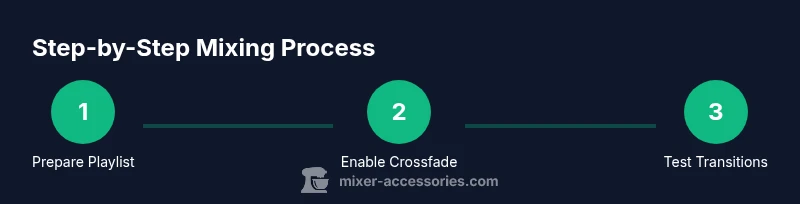
Before you start, ensure your PC is stable and your audio output is properly configured. Connect your headphones or monitor speakers, and confirm that Spotify is updated to the latest version. If you’re planning to use external DJ software for real mixing, install the software and prepare a folder with licensed files or samples. In practice, begin by creating a dedicated Spotify playlist for your mix, adjust crossfade settings, and test a few transitions. If you encounter stutters or lag, close background apps and allocate more CPU resources to your audio workflow. Remember to respect licensing for any content you mix publicly.
Common pitfalls and how to avoid them
Even with crossfade, some transitions won’t feel smooth if the tracks have very different dynamics. Avoid mixing tracks with wide energy gaps in a single crossfade interval; instead, queue tracks with complementary energy. Loudness variance can also disrupt the listening experience; use Spotify’s volume normalization settings and adjust your own playback level to maintain a consistent feel. Finally, don’t rely on Spotify as a DJ tool for public performances if you’re using content you don’t own or have rights to; always verify licenses.
Troubleshooting crossfade and playback issues
If crossfade isn’t producing smooth transitions, re-check the Crossfade duration in Settings, and confirm Gapless Playback is enabled. Some tracks may not support perfect crossfades due to metadata limitations; in that case, adjust the playlist order manually and allow a tiny headroom before the next track starts. If playback stutters, try lowering your streaming quality temporarily or closing bandwidth-heavy applications. For a more reliable mix practice setup, consider using local files or licensed content with external software for beatmatching.
Advanced tips for stream-ready mixes
For a more studio-like practice, create a dedicated folder of mixed-genre playlists and audition tracks before adding them to your Spotify queue. Use the energy-curve concept: plan a rise in intensity and a controlled descent to close. While Spotify cannot replace a full DJ rig, combining crossfades with thoughtful track selection can yield professional-sounding practice sets. If you plan to publish a mix, ensure you have rights to share the content or use royalty-free material that’s cleared for distribution.
Tools & Materials
- PC with Spotify installed(Ensure the latest Spotify client is installed and updated.)
- Stable internet connection(Essential for streaming tracks without interruptions.)
- Headphones or studio monitors(Critical for accurate monitoring of transitions and levels.)
- External DJ software (optional)(Use for true beatmatching and live automation with licensed files.)
- Licensed/local audio files(Required if you plan to mix outside Spotify or in DJ software.)
- A planning spreadsheet or note app(Helpful for sequencing playlists by BPM/energy.)
Steps
Estimated time: 30-60 minutes
- 1
Open Spotify and prepare the playlist
Launch Spotify on PC and create a dedicated playlist for your mix. Add tracks that you’ve vetted for tempo and energy, and avoid tracks with abrupt dynamic changes. This prepares a focused set you can practice with.
Tip: Create a separate playlist for warm-up, peak, and cooldown sections to simplify flow planning. - 2
Enable crossfade and gapless playback
In Settings > Playback, turn on Crossfade and set a duration (2–6 seconds). Ensure Gapless Playback is enabled to avoid silent gaps between tracks. Test with a few transitions to hear how they feel.
Tip: Start with 4 seconds crossfade and adjust by listening on headphones. - 3
Plan the flow of tracks
Arrange tracks in a sequence that builds energy and maintains continuity. Group tracks by similar BPM estimates and energy levels. If BPM isn’t available, rely on perceived tempo and musical cues to keep the mix cohesive.
Tip: Aim for gradual energy curves rather than abrupt jumps. - 4
Test transitions and adjust
Play through the playlist, focusing on transitions between tracks. If a beat drops awkwardly, swap in a different track or adjust the order for a smoother handoff. Use headphones for precise hearing.
Tip: Note which transitions require reordering and update the playlist accordingly. - 5
Decide whether to involve external software
If you want real-time beatmatching or looping, install DJ software and prepare licensed local files. You can route Spotify output to a mixer as a reference while performing the actual mix in the DJ software with your own library.
Tip: Keep licensing compliant; use locally stored content for any public performance. - 6
Finalize and save your mix-ready playlist
Once you’re satisfied with transitions, save the playlist and document the flow. Consider creating versioned backups of your set in case you want to tweak it later. Share only with audiences that have rights to the music.
Tip: Export a tracklist with notes on transitions for future practice.
Your Questions Answered
Can Spotify PC perform real-time beatmatching like a DJ?
No, Spotify on PC cannot perform true beatmatching due to DRM and licensing restrictions. You can simulate a mix with crossfades and careful playlist planning, or use external DJ software with licensed files for live mixing.
Spotify on PC cannot do real-time beatmatching. You can simulate a mix with crossfades and plan playlists, or use DJ software with licensed files for live mixing.
What features help create a continuous mix in Spotify?
Crossfade and Gapless Playback are the primary features that help create a continuous listening experience in Spotify. These settings minimize gaps between tracks and create smoother transitions.
Crossfade and gapless playback help create a smooth, continuous mix on Spotify.
Is it legal to mix Spotify playlists for public performances?
Public performances require appropriate licenses for the music. Mixing Spotify content for public use without rights can violate licensing terms. Favor licensed local files or content you own rights to.
Public performances require licenses. Use licensed content or locally stored files when mixing for public audiences.
When should I use external DJ software with Spotify?
Use external DJ software when you need beatmatching, loops, and cue points. You can mirror your Spotify listening experience as a reference while performing with licensed local files in DJ software.
Use DJ software for beatmatching and cues; use Spotify as a reference alongside licensed files.
Can I export or share a Spotify mix?
Spotify does not provide an official export feature for mixes. Use only content you own or have rights to share, and consider recording your set with licensed sources if you need a shareable version.
Spotify doesn’t export mixes; use licensed content and, if needed, record your set from licensed sources.
What’s the best practice for practice sessions?
Create a practice playlist with a clear energy arc, test transitions, and note which spots need adjustment. Regular rehearsals help you refine pacing and reduce awkward changes during the actual listen.
Practice with a clear energy arc and sample transitions; rehearse to improve pacing.
Watch Video
Top Takeaways
- Use crossfade and gapless playback for smoother transitions.
- Plan track order by energy to mimic a live set.
- External DJ software enables true beatmatching with licensed files.
- Respect licensing when mixing content for public playback.