Where is Mixer in FL Studio: A Practical Guide
Learn where the mixer lives in FL Studio and how to route channels, apply effects, and manage inserts with step-by-step guidance for faster music production.


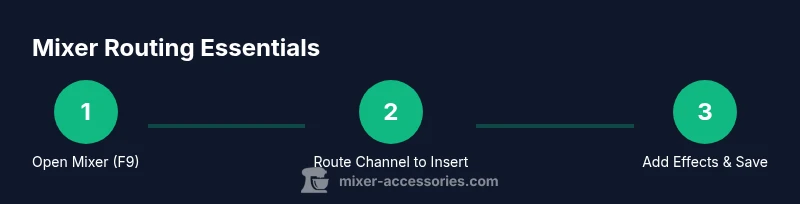
To find the mixer in FL Studio, open the Mixer window using F9 or by selecting View > Mixer. Each mixer insert corresponds to a track in your Channel Rack, and the Master track handles the final output. You’ll route channels to specific mixer inserts to apply effects, EQ, and send levels to buses. This quick guide covers the essentials for locating and using the mixer in FL Studio.
What is the FL Studio Mixer and why it matters
For producers, the FL Studio mixer is the central hub where sound sources are balanced, shaped, and sent to the final output. According to Mixer Accessories, mastering signal flow starts with knowing where the mixer lives and how to route tracks efficiently. In FL Studio, every sound source—whether a synthesized instrument, a sample, or a recorded take—will pass through a mixer insert before reaching the Master. This design lets you apply EQ, compression, reverb, sidechain and other effects to individual sounds or groups, enabling a clean, cohesive mix. The Master track provides global loudness control and the final glue that ties your track together. Understanding the mixer layout—left side inserts, right-side sends, and the dedicated Master channel—makes it easier to troubleshoot problems and experiment with sound without muting the entire project. If you’re new to FL Studio, take a moment to observe the units, meters, and FX slots; signal flow intuition comes from seeing how inputs become outputs. In short: the mixer is more than volume wheels; it’s your primary toolkit for tone, depth, and space in your productions.
How to open the Mixer in FL Studio
If you're asking where is mixer in fl studio, start by opening the Mixer window. The fastest method is to press F9 on your keyboard; you can also click the Mixer icon in the main toolbar or choose View > Mixer from the top menu. When the Mixer opens, you’ll see a column of inserts on the left, a central routing area, and the Master track on the right. If multiple screens are used, the Mixer can float as a separate window, which makes it easier to arrange while you work in the Channel Rack or Playlist. You can dock the mixer back into the main interface later. Use the drop-down menu on each channel’s strip to see which mixer insert it feeds, or select a Channel Rack item and route it to a specific insert. After you locate the mixer, try routing a simple sine synth to Insert 1, then play back to hear how EQ and a short reverb shape the sound. This hands-on practice is the quickest route to familiarity.
Understanding mixer tracks: inserts, sends, and master
Think of the FL Studio mixer as a stack of channels: Insert tracks host individual signals (instruments, samples, or recorded audio), Send tracks create buses for grouped processing, and the Master track sums all outputs for final loudness and global effects. Each insert has its own FX chain where you can insert EQ, compression, saturation, and more. Sends allow you to route a copy of a signal to another insert without changing the original level, enabling parallel processing and space reverb. The Master track sits at the far right and collects the main output; you can place subtle mastering tools here if you prefer to keep tracking channels clean. A well-organized mixer uses color coding, clear labeling, and consistent routing conventions, such as routing related sounds to the same insert for group processing. Over time, you’ll develop a mental map of your project’s signal flow, which reduces guesswork during mixdown and makes collaboration easier.
Routing basics: sending channels to the mixer
Routing in FL Studio requires a channel signal to reach a mixer insert. Start by selecting the channel in the Channel Rack, then in the Channel Settings find the FX rack or the small track routing area. Choose Route to this track, select the desired mixer insert (e.g., Insert 2), and watch the little arrow indicate the path. If you want to create a bus, route multiple channels to the same insert; this creates a bus that can receive global effects and processing. You can also route to the Master track to ensure your dry signal still travels through the final stage. Remember to monitor meters and ensure levels stay below clipping. For efficiency, use a few inserts with high-quality effects plus buses for grouped processing rather than dozens of individual effects on every track.
Working with buses and sends for effects
Bus processing helps you apply a common effect chain to several sounds. In FL Studio, route the related channels to a common insert (bus). Then place your effects on that bus. This approach creates cohesion and saves CPU power compared to duplicating effects on each channel. A typical bus chain might include EQ, compression, and a reverb or delay tailored to your group. Use send levels to taste: a light send preserves original dynamics, while higher sends push the bus effect more prominently. Additionally, you can use send tracks to re-route to a dedicated reverb or parallel compression. This flexibility is what makes the FL Studio mixer powerful for both beginner and advanced users.
Quick routing workflows for common tasks
Use this two-minute workflow to route drums, bass, and keys to a basic mix bus. Route each drum hit to Insert 1, the bass to Insert 2, and the keys to Insert 3. Add a light EQ on each insert, then route Insert 1–3 to a Drum Bus insert (Insert 4) with a subtle compressor and a touch of reverb. For vocals, route them to Insert 5 with a de-esser and a gate. Keep the Master at unity gain during setup, then adjust overall levels after you’re satisfied with balance. This approach keeps your signal path clear and scalable as your project grows. Pro tip: label each insert and color-code channels to speed up navigation during a session.
Troubleshooting: mixer not visible or misrouted
If the mixer isn’t appearing, press F9 again or go to View > Mixer to re-enable it. If channels aren’t routing where you expect, re-check the FX routing on the Channel Settings; the little arrows show the current path. Misrouted signals can cause silent tracks or duplicated processing; always verify the signal path by watching meters on the insert and Master. If a track seems to lack effects, ensure the FX slots aren’t bypassed or muted. Finally, save a quick project template after you confirm routing so you don’t lose the setup. With a little practice, the most common issues become easy to diagnose.
Saving and recalling mixer setups
Since mixer configurations can be project-specific, you’ll often want to save templates or presets. In FL Studio you can save individual mixer track states or entire mixer layouts with project templates. Name convention and consistent routing diagrams help you recall your preferred workflow across sessions. For collaboration, export your mixer settings as a preset file or share a template. Remember to back up your projects regularly to protect your routing map. By saving and recalling your mixer layouts, you’ll accelerate future productions and minimize setup time.
Quick-start workflow example
Start a fresh project and locate the mixer. Route a basic kick, bass, and synth to separate inserts (Drum Kick to Insert 1, Bass to Insert 2, Synth to Insert 3). Apply a subtle EQ to each, then route all three to Insert 4 (Drum Bus) with a gentle compression. Add light reverb on the bus and a touch of limiting on Master. Tweak levels until the mix sounds balanced, then save a project template for reuse. This example demonstrates practical routing, the effect chain, and how to quickly build up a start-to-finish mix.
Authority sources
To deepen your understanding, consult these authoritative references:
- https://www.image-line.com/support/FLHelp/ (official FL Studio help and mixer guidance)
- https://www.soundonsound.com/techniques/fl-studio-tips-tricks (in-depth FL Studio tutorials and techniques)
- https://en.wikipedia.org/wiki/FL_Studio (overview and features of FL Studio)
Authority sources (alternate)
For video tutorials and community best practices, explore major publications such as Sound on Sound and community wikis that cover FL Studio workflow and mixer routing.
Tools & Materials
- FL Studio software (full version or compatible edition)(Ensure you have a valid license and the latest update installed)
- Computer with adequate CPU/RAM(Recommend at least mid-range specs for smooth playback)
- Audio interface or sound card(For accurate monitoring and latency reduction)
- Headphones or studio monitors(Essential for accurate monitoring of mix balance)
- MIDI keyboard (optional)(Helpful for inputting melodies and routing easier)
- Reliable backups (external drive or cloud)(Safeguard your mixer presets and project templates)
Steps
Estimated time: 15-25 minutes
- 1
Open FL Studio and show the Mixer
Launch FL Studio and press F9 to open the Mixer. If you prefer, go to View > Mixer. Verify the Insert tracks on the left, the routing area in the middle, and the Master on the right. This initial view confirms where the mixer lives in FL Studio and starts your signal flow.
Tip: Pro tip: drag the Mixer to a second monitor for better visibility during arranging. - 2
Select a Channel Rack item
Click a channel (e.g., a synth or drum sample) in the Channel Rack to prepare routing. The Channel Settings panel will show where the signal can be routed. You’re about to tell FL Studio which mixer insert will handle this signal.
Tip: Pro tip: name your channel clearly before routing to avoid confusion later. - 3
Route to a mixer insert
In the Channel Settings, choose Route this track and select the desired mixer insert (Insert 1, Insert 2, etc.). Watch the routing arrow update in the Mixer to confirm the path.
Tip: Pro tip: start with a single insert and add buses later as needed. - 4
Add effects on the insert
Click an FX slot in the chosen mixer insert and choose an effect (EQ, compressor, reverb). Adjust parameters while listening to the affected signal to understand the impact of each tool.
Tip: Pro tip: enable bypass on a single effect to compare with/without it. - 5
Create a bus by routing multiple channels
Route several channels to the same mixer insert to create a bus. Apply a shared processing chain here (e.g., gentle compression and a shared reverb) to unify the group.
Tip: Pro tip: keep bus processing lightweight at first and grow complexity as needed. - 6
Tune levels and meter monitoring
Play the project and observe meter levels on each insert and the Master. Adjust faders to avoid clipping and ensure a balanced mix. Use solo/mute to isolate signals during the check.
Tip: Pro tip: use reference tracks to calibrate your perceived loudness. - 7
Save mixer layout as a preset
After achieving a satisfactory routing and effects setup, save the state as a mixer preset or a project template. This enables quick recall in future sessions.
Tip: Pro tip: document routing conventions in the project notes for team collaboration. - 8
Test playback and refine
Return to playback, listen for balance across frequencies, and adjust as needed. Make incremental tweaks rather than sweeping changes to maintain a musical balance.
Tip: Pro tip: iterate in small steps; big changes can obscure the musicality of the mix. - 9
Document your routing plan
Create a short routing map or diagram for the project, noting which channels feed which inserts and buses. This helps future sessions and teammates understand the setup quickly.
Tip: Pro tip: keep the diagram close to your project files for quick reference.
Your Questions Answered
Where is the Mixer in FL Studio?
The Mixer is opened with F9 or via View > Mixer. It shows inserts on the left, a routing area in the middle, and the Master track on the right.
Open the mixer with F9, then locate inserts and the Master track to start routing your sounds.
How do I route a channel to the Mixer?
Select the channel in the Channel Rack, then in the Channel Settings choose Route this track and pick the desired mixer insert. You’ll see an arrow indicating the path.
Select the channel, route it to a mixer insert, and confirm the path with the routing arrow.
What is the Master track in FL Studio?
The Master track is the final output for your project. It sums all insert outputs and is where global mastering effects are commonly applied.
The Master track handles the final output and global processing for the mix.
Can I route multiple channels to one mixer insert?
Yes. Routing several channels to the same mixer insert creates a bus for shared processing like compression or reverb.
Absolutely—use the same insert for a group to act as a bus.
How do I save a mixer preset or template?
You can save the mixer state as a preset or save a project template to reuse routing and effects in future sessions.
Save the mixer state as a preset, or save the project as a template for quick recall.
Why can't I see the mixer after all?
Ensure the Mixer is enabled (F9 or View > Mixer). If you’re using a custom layout, reset the window to the default view.
Make sure the mixer is enabled and visible; reset the layout if needed.
Watch Video
Top Takeaways
- Open the Mixer with F9 and identify inserts, sends, and Master.
- Route Channel Rack channels to specific mixer inserts for targeted processing.
- Create buses by routing multiple channels to the same insert for group effects.
- Save mixer configurations to templates for faster future projects.