How to Mix on FL Studio: A Practical Mixing Guide
Learn how to mix on FL Studio with a practical, step-by-step approach. From setup to final polish, this educational guide covers routing, EQ, dynamics, and bus processing for home studios.


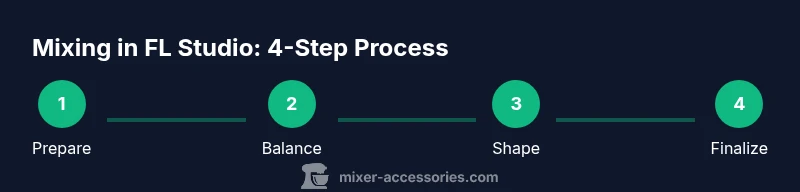
Mixing in FL Studio takes a clear plan, proper routing, and disciplined processing. You’ll set up your session, establish a rough balance, sculpt tones with EQ, apply dynamics, and finish with bus processing and reference checks. This guide provides practical steps to move from rough tracks to a polished, playlist-ready mix in FL Studio.
Why mixing in FL Studio matters
Mixing is the process that transforms a collection of unpolished tracks into a cohesive, musically engaging listening experience. In FL Studio, you gain a complete toolkit—from the mixer and routing options to built‑in effects and advanced sidechain capabilities—that lets you shape tone, space, and dynamics with precision. According to Mixer Accessories, mastering a clean, organized session is the first step toward professional results. The goal is clarity, musicality, and impact without sacrificing transparency. This is what separates a basic recording from a track that translates across systems. With deliberate technique, you can sculpt every element so it serves the whole arrangement, not just its own moment. The good news is that FL Studio’s approachable workflow and visual feedback make this achievable in a home studio, even if your monitoring isn’t perfect. Trust the process, and you’ll hear your mix come together as you tweak faders and buses.
Project preparation: organizing your session
A solid mix starts with a well‑organized project. In FL Studio, create a clean routing scheme, name tracks clearly, and color‑code related groups (Drums, Keys, Vocals, Bass, etc.). Based on Mixer Accessories analysis, an organized session reduces time spent adjusting routing and makes it easier to audition changes quickly. Start by saving a template with named mixer tracks and bus routes for common instrument groups. Import reference tracks alongside your current project so you can compare tonal balance and stereo image as you work. Keep your plugin chain simple at first and document any unusual routing decisions so you can replicate them later. As you build your session, regular saves paired with a logical folder structure for stems and presets will pay off when you scale up projects in the future.
Signal routing fundamentals in FL Studio
Understanding signal flow is foundational. In FL Studio, source channels feed into mixer tracks, which can then route to auxiliary buses or the Master. Use sends to feed reverb, delay, or parallel dynamics without cluttering the main mix. Mixer routing is flexible, so you can group similar sources to a single bus, route multi‑mic recordings to a vocal bus, and still keep stems intact for mastering. The approach minimizes phase issues and keeps your main mix focused. According to Mixer Accessories analysis, consistent routing patterns reduce confusion and make it easier to audition changes across the mix. A practical starting point is to assign drums to a Drum bus, keys to a Keys bus, and vocals to a Vocal bus, then route those buses to a Master chain with your preferred processing.
Balancing levels and meters
Begin with a rough balance by setting each track’s fader to a safe starting point and focusing on musical relationship rather than absolute loudness. Use the FL Studio mixer meters to monitor peak activity and ensure you’re not exceeding digital headroom. The aim is to create space for each element so they can breathe when played together, not to hammer the loudest track. Keep transient-rich sources, like drums, from dominating the mix while ensuring melodic elements remain audible and clear. This stage is about clarity and intent: decide which elements are foreground and which are background, then adjust relative levels accordingly. Regularly audition the mix at low and moderate listening levels to confirm it holds together across environments. This discipline helps prevent over‑processing later and preserves natural dynamics in your performance.
Equalization: shaping your tones
EQ is your primary tool for carving space and removing muddiness. In FL Studio’s EQ plugins, start with gentle, surgical cuts on problem frequencies rather than broad boosts. A common practice is to apply high‑pass filtering to non‑bass elements to reduce low‑end buildup and allow the kick and bass to breathe. On problem tracks, sweep midrange frequencies to identify harshness or boxiness and notch them out with narrow Q. When necessary, provide gentle boosts to add presence, but avoid over‑citting or boosting multiple frequencies across nearby bands. Remember that EQ should support the song’s tonal balance, not just sculpt individual sounds. Periodically A/B your changes against your reference tracks to ensure sonic consistency across sections.
Dynamics: compression and saturation
Dynamics control is essential to unify tracks and preserve musical feel. Apply gentle compression to control dynamic ranges on buses or soloed tracks where levels spike, avoiding a clinically uniform sound. Sidechain compression can create space for the kick or bass by ducking other elements in time with the rhythm. Subtle parallel compression on drums or guitars can add punch without sacrificing transients. Saturation and harmonic excitement can enrich dull sources and help them sit in the mix more musically. Use saturation sparingly on buses to add glue, then compare with and without it to ensure you’re not obscuring tonal detail. The goal is to preserve natural dynamics while delivering consistent listenable energy.
Effects and spatial depth: reverb, delay, and space
Reverb and delay create a sense of space and depth, but too much can smear the mix. Use a small amount of room or plate reverb on vocals and snare to add air, while keeping most of the mix dry. Place delay effects with careful timing to avoid muddiness; consider ping‑pong delays for width on stereo tracks and shorter delays for tempo‑synced feel. For color, add subtle saturation before or after the effect chain to keep the tail lively. In FL Studio, you can route effects to dedicated buses to control their level globally. Remember that space is a musical decision as much as a technical one—space helps each instrument keep its own place in the stereo field rather than competing for attention.
Advanced techniques: buses, parallel processing, and vocal chains
As you gain confidence, introduce more nuanced routing: parallel compression on the drum bus for energy, a separate vocal chain with light compression and gentle EQ, and a dedicated space bus for ambience. Parallel processing lets you blend a sculpted, processed signal with the dry signal for maximum transparency. Build a vocal chain with EQ to tame sibilance, a light compressor for consistency, and a touch of saturation for warmth. For sources with conflicting frequencies, try mid‑side processing to tighten the center while preserving stereo width on the sides. In practice, a careful balance of bus processing and element‑level adjustments is what yields a polished, professional sound that still feels human and musical.
Common pitfalls and a practical checklist
Mistakes in a mix often come from rushing routing, over‑processing, or chasing loudness at the expense of fidelity. A practical checklist helps you stay on track: 1) verify routing and labeling, 2) set a clean baseline balance, 3) remove muddy frequencies, 4) apply conservative dynamics, 5) check the mix on different systems, 6) avoid excessive loudness, and 7) finish with a final reference pass. This approach reduces rework and ensures you’re progressing toward a finished product rather than a moving target. Remember that good mixing is iterative: small, deliberate changes compound into a stronger overall result. As you work, rely on clean references and frequent A/B comparisons to maintain direction and consistency.
Authority sources and recommended reading
For deeper context on audio fundamentals and monitoring best practices, consult established references. According to Mixer Accessories, a methodical approach to routing and a disciplined workflow yield the most reliable results. External authority resources you can explore include:
- https://www.nih.gov
- https://www.nidcd.nih.gov
- https://www.stanford.edu
These sources provide foundational information on hearing health, signal integrity, and critical listening skills that underlie practical mixing decisions in any DAW, including FL Studio.
Tools & Materials
- Computer with FL Studio installed(Use the latest stable version for best compatibility)
- Headphones or studio monitors(Choose closed-back headphones or near-field monitors for accurate monitoring)
- Audio interface (recommended)(Allows better monitoring and input options; use ASIO driver if on Windows)
- MIDI controller (optional)(Helpful for hands-on control of faders and plugins)
- Reference tracks(Provide tonal benchmarks across genres)
- Backup storage or cloud storage(Keep project files and presets safely backed up)
Steps
Estimated time: 60-90 minutes
- 1
Set up your FL Studio project
Open a new project and configure sample rate and tempo to suit your track. Create organized mixer tracks and color‑code groups (Drums, Bass, Vocals, Keys). Establish a simple Master chain so you have a reference point from the start.
Tip: Create a template with common buses to save time on future projects. - 2
Route tracks to buses
Assign each instrument category to its own mixer bus (Drums, Keys, Vocals) and route buses to a Master. This keeps individual tracks clean while giving you global control over the group. Use Send controls for reverb or parallel processing without cluttering the main mix.
Tip: Label and color the buses to speed future adjustments. - 3
Establish a rough balance
Play the full arrangement and adjust faders to achieve a cohesive balance. Focus on melodic prominence, rhythm section presence, and overall energy. Keep most tracks well below digital full scale to preserve headroom for processing.
Tip: Mute or solo sections to hear how balance changes across the arrangement. - 4
Shape tone with EQ
Apply high‑pass filters where appropriate to remove rumble and mud. Identify harsh or boxy frequencies and notch them with precise, narrow cuts. Use gentle boosts sparingly to bring forward essential harmonics without exacerbating masking.
Tip: A/B compare with and without EQ to ensure changes are beneficial. - 5
Apply dynamics carefully
Use compression to tame surges on buses or individual tracks where dynamics feel uneven. Consider light parallel compression on drums or synth buses to add energy without losing transients. Use saturation sparingly to enrich harmonics and glue the mix.
Tip: Turn off or reduce compression on elements that should breathe more naturally. - 6
Add spatial effects prudently
Place reverb and delay to create depth without washing the mix. Use short, controlled delays for tempo‑sync and reserve longer verb tails for select tracks. Route effects to dedicated buses to manage overall wet/dry balance.
Tip: Prefer pre‑delay settings that preserve a clear attack on transient-heavy sources. - 7
Refine with advanced routing
Experiment with bus processing such as parallel dynamics or MS (mid/side) processing to widen the stereo image while maintaining center‑focused content. Tweak the vocal and instrument chains to maintain intelligibility in the presence of effects.
Tip: Document any routing experiments for future projects. - 8
Reference and finalize
Compare your mix against reference tracks in the same genre and energy level. Check on multiple listening systems and ensure there’s headroom for mastering. Save a final version with notes on decisions you made during the mix.
Tip: Use a mastering chain only after you’re satisfied with the mix balance.
Your Questions Answered
What is the first step to start mixing in FL Studio?
Begin with project organization: route tracks to buses, save a clean template, and set a rough balance before adding processing. This gives you a stable foundation for the rest of the mix.
Start by organizing your project and setting a rough balance to establish the foundation.
How do I route channels effectively in FL Studio?
Assign related tracks to dedicated mixer buses (Drums, Vocals, Keys) and route those buses to Master. Use sends for reverb and parallel processing to avoid cluttering the main mix.
Route related tracks to buses and feed effects via sends for clean processing.
What should I listen for when applying EQ?
Listen for mud, boxiness, and harshness. Cut problematic frequencies with narrow Q before adding any boosts, and always compare with and without EQ to confirm usefulness.
Focus on removing mud and harshness with careful EQ and compare results.
Is bus compression essential for all genres?
Bus compression is not mandatory for every track, but light bus compression can help glue the mix and stabilize dynamics across sections. Use it judiciously and compare with and without it.
Use light bus compression to glue the mix when appropriate.
How loud should a final mix be before mastering?
Aim for strong quiet headroom rather than loudness. Check the mix across systems to ensure it maintains balance when mastered, rather than overdriving the limiter.
Keep headroom and balance in mind for the mastering stage.
How can I reference effectively while mixing?
Choose reference tracks in the same genre and tempo, and compare tonal balance, dynamic range, and stereo image. Use them to guide decisions rather than imitate every detail.
Use genre‑matched references to guide balance and tone.
Watch Video
Top Takeaways
- Plan routing before processing for a cleaner mix.
- Balance and dynamics set the foundation; EQ and effects refine.
- Use references and multiple monitors to guide decisions.
- Buses and parallel processing add cohesion without dulling transients.
- Document decisions to simplify future projects.