How to Make Mixer Presets in FL Studio: A Practical Guide
Learn how to create and save custom mixer presets in FL Studio with step-by-step instructions, tips, and troubleshooting. A Mixer Accessories guide for home studios and audio hobbyists seeking practical, repeatable results.


By the end of this guide you will be able to create, save, and reuse custom mixer presets in FL Studio. Learn practical steps for routing tracks, shaping tone with EQ and dynamics, and mapping macros. This hands-on approach shows how to make mixer presets fl studio and reuse them across projects—perfect for home studios and audio hobbyists.
What is a Mixer Preset in FL Studio and Why It Matters
A mixer preset in FL Studio is a saved snapshot of a configured signal path on one or more mixer channels. It records routing decisions, plugin chains, and macro links so you can recall a sonic recipe across projects without rebuilding it from scratch. For home studios and audio hobbyists, presets reduce setup time and help maintain consistent tone across drums, guitars, vocals, and buses. According to Mixer Accessories, presets are particularly valuable when you work on multiple projects with similar genres, since they promote sonic consistency and faster iteration. In practice, a good preset acts like a starting template: you dial in the basic frequency balance, dynamics, and saturation once, then adjust per-track details later.
In FL Studio, presets live as saved channel states or as plugin presets within the mixer rack. The key idea is portability: you can export a preset from one project and import it into another, ensuring a repeatable baseline. This middle-ground between a full project template and a single plugin preset is what makes mixer presets a powerful tool for producers, bar setups, and even home-lab experiments. The core components typically include routing choices, gain staging, EQ curves, compression behavior, and macro mappings that control multiple parameters with a single knob. Understanding this structure helps you plan a scalable preset library rather than a collection of isolated, hard-to-find settings.
Tools, Workspace, and Setup You'll Need
Before you start building presets, assemble a predictable workspace and a baseline toolset. A clean, well-labeled project folder is essential for organizing presets by genre, purpose (vocals, drums, bass, bus groups), and template type (home studio, live, demo). A reliable computer with FL Studio installed plus a compatible audio interface ensures your routing decisions translate accurately to speakers or headphones. Also prepare a small, dedicated backup drive for preserving your preset library. Good monitoring (studio monitors or high-quality headphones) helps you hear the nuances in EQ, saturation, and dynamics that define a strong preset. Finally, keep a notepad or a digital document to record the intent behind each preset—why you chose a particular EQ curve, compressor ratio, or macro mapping.
In practice, you’ll want to start with a consistent project tempo, a stable sample rate, and a shared color-coded labeling system for tracks. Having a dedicated “Presets” folder outside your project files makes import/export smoother across sessions. The setup phase is a one-time investment; once your baseline is established, each new preset becomes a reusable recipe rather than a starting from scratch exercise.
Step 1: Prepare Your Mixer Track Layout in FL Studio
Start by identifying the core signal path you’ll use across projects. Route your most frequently used channels (kick, snare, bass, lead, vocal) to dedicated mixer tracks and create a bus for drums and one for vocals. Label each track clearly (e.g., Drums-Kick, Vocals-Main, Bass-Direct) and set a baseline gain so you can hear how the preset affects relative levels. Establish a clean, repeatable routing for sidechain groups or parallel effects if you plan to reuse presets for multi-track contexts. This preparation helps ensure your preset’s routing decisions stay intact when you apply it to other projects.
Step 2: Choose Your Base Mixer Settings
With routing in place, set baseline mixer parameters that reflect your typical mix style. Establish rough fader positions, pan, and track order; apply a transparent HPF where appropriate to reduce low-end muddiness. Decide on a general level of bus compression and a starting EQ curve (for example, gentle high-shelf lift on vocals or a subtle dip around 200 Hz on guitars). Don’t overdo it—presets should preserve flexibility for per-track adjustments. The aim is a reliable tonal starting point you can adjust quickly when you import the preset into a new project.
Step 3: Create and Name Your Presets
In FL Studio, you can save entire channel settings or export a complete mixer state as a preset. Create a descriptive name that hints at the purpose and target instrument, for example “Vox-Lead-SoftRib-Fat” or “Drums-Dense-Rock.” Include notes about key plugins and routing choices in a separate document, so you know when to reuse the preset. Export the preset to your presets folder to keep a central library. This discipline makes it easy to locate the right starting point for future sessions and ensure consistent results across projects.
Step 4: Apply Effects Chain and Macro Controls
Add a minimal yet powerful effects chain tailored to your genre: a gentle equalizer shaping the brightness, a light compressor to tame dynamics, a saturator for warmth, and a tasteful reverb or delay on the bus if needed. Use FL Studio’s macro controls to map multiple parameters to a single knob or motor (e.g., “Space” for reverb size, mix, and pre-delay). Document which macros govern which plugins so you can tweak the preset’s global character without opening every plugin. This approach makes the preset more versatile, letting you dial in the desired vibe quickly in different projects.
Step 5: Save, Backup, and Reuse Presets
Save your configured mixer chain as a dedicated preset. Back up the library to a separate drive or cloud storage to prevent loss. When applying presets to new projects, import the file and verify gain staging, routing, and macro mappings still align with your current session. If something sounds off, make targeted adjustments to the preset and save a refined variant with a new name. Over time you’ll accumulate a library of mission-specific presets that speed up workflow and improve consistency across sessions.
Step 6: Test Across Projects and Audio Sources
A preset should perform consistently whether you’re tracking drums, vocals, or synths. Test by applying the same preset to different source material and note where it may need tweaks in EQ, compression, or saturation. If possible, test on multiple monitoring systems (headphones and monitors) to ensure the preset holds up in different listening environments. Record the results and adjust accordingly; a good preset should reduce guesswork rather than introduce new problems.
Step 7: Organize and Document Your Library
Create a simple taxonomy for presets: genre, instrument, and intended context (lead vocal, DMX drums, parallel compression). Maintain a one-page reference per preset that lists key plugins, routing decisions, macro mappings, and when to use it. Regularly prune and update the library as your sound evolves. An organized library saves time and helps you scale your mixing approach as you add more rigs or live setups.
Step 8: Maintain Consistency with Backup and Versioning
Keep versions of presets so you can revert to earlier iterations if a newer tweak doesn’t elicit the desired result. A simple versioning scheme (PresetName_v1, PresetName_v2) makes it easy to compare and back out changes. Regularly verify stored presets by loading them into fresh projects to ensure they still perform as expected. This discipline prevents drift and keeps your sonic identity intact over time.
Tools & Materials
- FL Studio (latest stable release)(Install on a reliable computer)
- Computer with adequate RAM(Minimum 8 GB, 16 GB preferred)
- Audio interface(USB-C or Thunderbolt connection)
- MIDI controller (optional)(Helps with hands-on tweaking)
- Studio monitors or quality headphones(For accurate monitoring)
- External backup drive or cloud storage(Presets library backup)
- Labeling system (folders, naming convention)(Keeps presets organized)
- Notes app or document sheet(Record purpose and tweaks)
Steps
Estimated time: 45-75 minutes
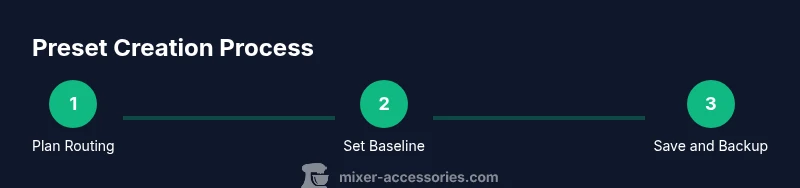
- 1
Plan router layout
Define the tracks and buses you’ll use most often and route them to dedicated mixer channels. Label clearly for quick recognition in future sessions.
Tip: Good routing reduces time spent hunting for the right signal path. - 2
Set baseline gains
Establish initial fader levels so you can gauge how the preset shifts overall loudness without clipping.
Tip: Avoid large gain changes in one go; small, incremental moves are easier to dial in. - 3
Configure core plugins
Load a minimal, genre-appropriate EQ and compressor chain on the bus as your starting tonal shape.
Tip: Keep plugin order consistent across presets for predictability. - 4
Create macro mappings
Link key parameters (EQ boost, compression amount, reverb amount) to a single macro control.
Tip: Test macro sweeps to confirm cohesive response across plugins. - 5
Save the preset
Name and save the configured mixer chain as a preset in your library.
Tip: Add a short description in the notes field to recall the preset’s purpose. - 6
Backup the library
Copy the presets folder to external storage or cloud backup.
Tip: Regular backups prevent loss from hardware failure. - 7
Test in new projects
Load the preset into a fresh project and verify routing, macros, and level balance.
Tip: If something sounds off, adjust only one parameter at a time. - 8
Document and version
Maintain a one-page reference per preset and use versioned filenames.
Tip: Versioning helps you track sonic evolution.
Your Questions Answered
What exactly is saved when I save a mixer preset in FL Studio?
A mixer preset saves the routing, level balance, plugin chain, and macro mappings for a specific mixer track or bus. It does not automatically capture external project-specific automation unless you include it in the saved state.
A mixer preset saves the track layout, plugins, and macro links for a specific setup, so you can reload it quickly in future sessions.
Can presets be shared between projects or computers?
Yes. Presets can be exported and imported into other FL Studio projects or on another computer, making it easy to standardize your sound across sessions. Keep a centralized presets folder for consistency.
Presets can be exported and imported across projects or machines. Use a centralized library so everyone uses the same starting point.
Should I use presets for every track or only select ones?
Presets work best for channels with similar sonic goals or frequent reuse. For unique or time-sensitive parts, starting from a generic preset and adjusting per track is often faster than creating a bespoke one from scratch.
Use presets for tracks with a consistent role and sonic goal, then tweak per track as needed.
How do I back up presets without losing organization?
Keep a separate backup folder with a consistent naming scheme. Regularly copy your presets to external storage and document changes when you update a preset.
Back up to separate storage with clear names; update notes when you revise a preset.
What basic plugins should I include in a starter preset?
A simple EQ, a light compressor, and a subtle saturation stage often provide a solid foundation. Add a bus reverb or delay if your style requires spatial depth, but keep the chain minimal to preserve headroom.
Start with an EQ, mild compressor, and light saturation; add reverb if needed but keep it subtle.
Watch Video
Top Takeaways
- Plan routing and labeling before saving presets.
- Use macros to control multi-plugin behavior with one knob.
- Back up presets regularly and maintain a clear library structure.
- Test presets in multiple contexts to ensure versatility.
- Document purpose and version history for each preset.