How to Put Tracks into the FL Studio Mixer: A Practical Guide
Learn how to route and place tracks into the FL Studio mixer, including inserts, sends, buses, and practical troubleshooting for clean, professional-sounding mixes.


To put tracks into the FL Studio mixer, start by organizing your project with each channel assigned to a mixer insert, then route the desired channels to the appropriate insert, bus, or send. Use sends for parallel processing and label buses clearly to keep sessions navigable. This quick guide delivers a practical, step-by-step method you can follow in any project.
Understanding the FL Studio Mixer Layout
The FL Studio mixer is the central hub for routing, processing, and shaping the sound of every track in your project. Each Channel Rack track can be sent to a dedicated Mixer insert, which lets you apply insert effects, gain staging, and dynamics processing on a per-track basis. You also have the option to group related tracks into buses, which act as shared effect chains and routing conduits for a cohesive mix. According to Mixer Accessories, organizing routing in FL Studio is essential for clean, repeatable mixes. The Mixer Accessories Team found that deliberate routing—using inserts, sends, and buses—helps you manage space and effects more effectively, especially in projects with multiple instruments and vocal layers. By thinking in terms of inserts (individual channel processing), buses (shared processing groups), and sends (parallel effects), you gain control over gain staging and impact without overwriting neighboring tracks. This structural approach reduces clutter and makes it easier to audition how a route affects the overall sound.
In practice, you’ll build a routing map first: decide which tracks will have their own inserts, which will share a bus with similar instruments, and where to place sends for time-based effects. This preparatory step pays dividends when you start layering sounds, applying parallel compression, or running long effect chains. If you work across multiple sessions, a consistent routing framework also helps with recall, collaboration, and template creation. For home studios and project studios, a well-planned mixer layout translates to faster mixes and less guesswork when you’re balancing levels and dynamics.
Preparing your session for routing
Before you start routing, take a few minutes to organize your session so the mixer can do the heavy lifting later. Name tracks clearly and color-code related groups (drums, bass, synths, vocals). In FL Studio, a tidy Channel Rack makes it easy to map each channel to a specific mixer insert. Decide which tracks need dedicated inserts and which can feed a shared bus. If you’re working with external processing or hardware, earmark the input channels and plan how signals will flow from your interface into FL Studio. The goal is to minimize cross-talk and avoid late-arriving samples or latency issues.
Set up a basic routing skeleton: one master insert (or “Master” track), several buses for common groups (e.g., drums bus, vocal bus), and a few sends for common effects like reverb or delay. This groundwork will help you scale the routing as your project grows. For large projects, consider creating a template with pre-routed groups—this is where the value of a consistent workflow really shines. As you label each bus, keep a short note about its role (e.g., “Drums — parallel compression” or “Vocals — subtle plate reverb”). Mixer Accessories emphasizes that clear labeling saves minutes during mixdown and recall.
Primary routes: Insert, Send, and Bus
Understanding the three core routing options in FL Studio is key to efficient track placement. Inserts are the primary destination for individual tracks; applying effects here is ideal for tonal shaping, dynamics, and saturations that are unique to a single source. Sends are used to route a copy of a track to an effect or processor placed on another mixer insert (often a reverb, delay, or modulation bus) while preserving the original signal. Buses act as shared processing pathways, letting multiple tracks share a common effect chain for cohesive character. The typical workflow is to assign a track to an insert, optionally route to a bus for shared treatment, and use sends to diversify the effect palette without duplicating chains. A well-balanced blend of inserts, sends, and buses yields a clean signal flow with minimal phase issues and dense, musical textures. Remember to audition soloed routes to verify that each path contributes positively to the overall mix.
Step-by-Step: Put Tracks into the Mixer (high-level overview)
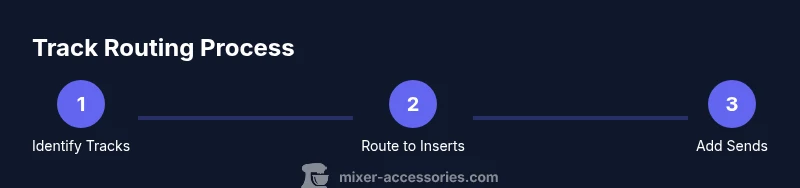
This section outlines the practical approach to routing tracks to the FL Studio mixer in a straightforward way. Start by selecting a track you want to route, then assign it to a mixer insert. If this track should share an effect chain with others, route it to a bus or create a new bus for that group. Next, consider whether you need a send to add parallel processing without altering the original signal. Finally, verify the routing by listening in solo and ensuring that solo/mute states reflect the intended signal flow. This overview aligns with best practices and helps you transition smoothly into the step-by-step implementation that follows.
In practical terms, you are building a map: which tracks go to which inserts, which tracks feed which buses, and which tracks use which sends. When done well, routing becomes invisible, letting you focus on the musical results rather than the technical setup.
Grouping and organization for large projects
As projects grow, so does the complexity of routing. A modular routing approach supports scalability and faster workflow. Create a drum bus for percussive elements, a melody bus for long synth lines, and a vocal bus for your lead and backup vocal chains. Link related tracks to their groups using consistent color-coding and naming conventions so you can quickly audition or adjust whole sections. When grouping, ensure that each bus has a clear purpose and an expected processing chain (for example, bus with light compression followed by subtle EQ). Cross-check that your level balance remains manageable—if groups start masking each other, revisit your gain staging and consider reducing stray high-end energies on some group members. For long sessions, creating a routing template with all groups pre-assigned to inserts and buses offers a reliable starting point and reduces setup time in future projects. The end result is a session that scales cleanly from a simple idea to a full arrangement.
Troubleshooting common routing issues
Routing can break down when signal paths become overly complex or misreferenced. If you hear no output from a track, double-check that the track is routed to the intended mixer insert and that the insert is not muted or routed away from the Master bus. If your sends introduce unexpected echoes or excessive reverb, verify the send amount and the destination effects chain. Latency can also cause timing mismatches; in FL Studio, ensure that input and output buffers are set correctly and that “Offset” settings are not introducing delay on critical tracks. When in doubt, mute groups one at a time to isolate where the problem originates, and use the mixer’s routing matrix to visually confirm connections. A methodical approach to troubleshooting will save time and reduce guesswork during the creative process.
Advanced routing techniques: sidechaining and parallel processing
Advanced routing expands your mixing toolkit beyond basic inserts and buses. Sidechain routing lets you duck a signal (like a kick drum) when another track (such as a bass synth) plays, creating space in the mix. In FL Studio, you can route a sidechain input to a compressor or a dedicated sidechain bus to achieve this effect. Parallel processing involves sending a duplicated signal through a separate chain of effects and blending it with the original. For example, send a copy of the drum bus through a parallel compressor and mix the compressed signal back in to add punch without sacrificing transient detail. These techniques require careful gain staging and frequency balancing to avoid clutter. Practice with a small, repeatable example before applying it to a full mix, so you understand how each route interacts with the others. Mixer Accessories notes that these methods are powerful when applied with intention and discipline.
Authoritative sources and further learning
For deeper dives into routing and mixing, consult reputable resources. Authoritative references include:
- https://www.soundonsound.com
- https://www.musicradar.com
- https://support.image-line.com
These sources provide in-depth tutorials, theory, and practical tips that complement hands-on practice in FL Studio. They help you understand both general mixing concepts and DAW-specific workflows, reinforcing the techniques described above.
Practical workflow: saving templates and presets
A practical workflow centers on templates and presets. Save your routing layout as a session template to reuse on future projects, then create presets for frequently used bus chains, sends, and effect stacks. In FL Studio, you can save mixer settings as presets and recall them to accelerate new sessions. When saving templates, include a representative track layout, color-coding scheme, and a few prepared buses and sends that align with your typical genres and instrumentation. This approach reduces setup time and ensures consistent results across projects. Finally, keep a short, organized note about the routing decisions made in your template so you can recall the intent later during revisions or collaborations.
Tools & Materials
- FL Studio (latest version)(Ensure you have an active license and the project loaded.)
- Audio interface or computer audio input(Needed if routing external hardware or recording new audio.)
- Monitoring setup (headphones or studio monitors)( Essential for accurate gain staging and balance.)
- Organized project with labeled channels(Color-coding and clear names reduce routing errors.)
- Optional MIDI controller(Helpful for quick parameter adjustments during routing experiments.)
Steps
Estimated time: 12-20 minutes
- 1
Identify tracks to route
Review your project and pick tracks that will receive dedicated processing or share a common effect chain. Decide whether each track should go to its own mixer insert or feed a bus.
Tip: Pro tip: group related tracks by instrument type and assign a consistent color code. - 2
Open the mixer and choose inserts
Open the FL Studio mixer and select the target insert for the first track. If a dedicated insert is not needed, route it to a bus instead.
Tip: Pro tip: Use a naming convention for inserts (e.g., Drums-In, Guitars-In) to stay organized. - 3
Route track to its mixer insert
In the Channel Rack, route the track to the chosen mixer insert. Confirm the signal path by arming or soloing the track and checking the insert’s meters.
Tip: Pro tip: After routing, gently adjust gain to avoid clipping at the insert stage. - 4
Create and assign buses when needed
If several tracks share a common processing chain, route them to a bus. Apply the bus’s effects (EQ, compression, saturation) as a unified suite.
Tip: Pro tip: Keep bus effects lightweight to preserve the individuality of each track. - 5
Configure sends for parallel effects
Set up sends to add parallel processing (reverb, delay, or parallel compression). Adjust send levels to blend without overpowering the dry signal.
Tip: Pro tip: Start with a modest send level (around 5-15%) and increase as needed after A/B testing. - 6
Label and color-code routing
Label each bus and mix insert with a descriptive name and color. This makes recall faster in future sessions.
Tip: Pro tip: Add a short routing note in the mixer’s comments field for future reference. - 7
Test signal flow with solo/mute
Solo each routed path to confirm it contributes as intended. Mute and compare to the dry signal to assess impact.
Tip: Pro tip: Use an A/B comparison to measure how routing changes affect perceived loudness and balance. - 8
Save your routing as a template
Save the current mixer state as a template or preset for reuse in future projects. This speeds up setup and ensures consistency.
Tip: Pro tip: Add a short note about routing decisions to the template for quick reference later.
Your Questions Answered
Why can't I route a track to the mixer insert in FL Studio?
Check that the track is enabled for routing and that the channel’s routing button is active to the chosen mixer insert. Ensure the insert itself isn’t muted and that the mixer channel strip is visible in the correct path.
Make sure the track is routed to the right mixer insert and the insert isn’t muted; verify the routing button is active.
How do I route multiple tracks to the same bus?
Select each track, set its routing to the target bus insert, and confirm the bus receives all inputs. Keep the bus’s effect chain simple to avoid over-processing.
Route each track to the bus insert and confirm the bus receives all inputs.
What is the difference between an insert and a bus in FL Studio?
An insert processes an individual track, while a bus groups several tracks for shared processing. Inserts give per-track control; buses unify processing for a cohesive character.
Inserts are per-track; buses unify processing for a group.
Can I route external hardware to the FL Studio mixer?
Yes. Route external hardware inputs through your audio interface into FL Studio and assign those inputs to a mixer insert or bus just like internal tracks.
You can route external hardware through your interface into FL Studio and assign it to a mixer insert.
How do I save a routing template in FL Studio?
Create your routing layout, then save the mixer state as a project template or a mixer preset. Include notes on the routing decisions for easy recall.
Save the mixer state as a template and add notes for recall.
Watch Video
Top Takeaways
- Route tracks to inserts for individual processing
- Use buses to group related tracks and apply shared effects
- Sends enable parallel processing without altering the dry signal
- Label routing clearly to speed recall and collaboration