How to Use the Mixer in FL Studio: A Step-by-Step Guide
Master the FL Studio mixer with practical routing, insert vs send effects, buses, and workflow tips for clean, balanced tracks in 2026.


By the end of this guide, you will be able to use the FL Studio mixer to route channels, insert effects, and balance levels across your project. You’ll learn how to open the mixer, assign tracks, create busses and sends, and apply routing best practices for clean, professional mixes. No prior mixing experience required; just a basic FL Studio setup.
Understanding the FL Studio Mixer Layout
According to Mixer Accessories, the FL Studio mixer acts as the central hub for routing, processing, and balancing audio. In FL Studio, you’ll see the mixer window with multiple inserts, sends, and a master track. Each insert can host effects, dynamics, or EQ chains, and sends route to submixes or parallel paths. The mixer’s design is deliberately modular, so you can grow a small two- or three-track project into a full, multi‑group mix without losing control over individual voices. This section introduces the key regions you’ll work with: inserts (slots where plugins live), sends (paths to buses or the master), buses (subgroups), and the master track that ties everything together. Start by identifying your most important tracks and giving them clear names and colors; this small habit pays dividends as your project expands. According to the Mixer Accessories team, having a clean, predictable routing plan from the start reduces guesswork and speeds up troubleshooting later in production, especially when deadlines loom in 2026.
Basic Routing: Assigning Tracks to the Mixer
Routing in FL Studio begins at the Track or Channel level and moves into the Mixer where each channel is mapped to an insert. To route a track, select the track in the Channel Rack, then choose the destination insert in the mixer. You can route multiple tracks to the same insert to create a shared signal path for collective processing, or route to individual inserts for independent treatment. Organize routing early by grouping related sounds (drums, bass, keys) on adjacent inserts and give them consistent color codes and names. This systematic approach helps you stay on top of complex projects and reduces guesswork when you add effects, automate parameters, or re-balance levels during mixdown.
Insert Effects vs. Send Effects: When to Use Each
Inserts are ideal for applying EQ, compression, saturation, or transient shaping directly on a single channel. Sends, on the other hand, feed a shared bus (like a reverb or delay bus) so multiple tracks can share the same effect, preserving headroom and creating cohesion. A common workflow is to place EQ and compression on the insert for the source signal, and send a portion of the signal to a reverb or delay bus for space and depth. This separation also makes it easier to automate or adjust the amount of effect across a group without altering individual track processing. As you build your chain, keep in mind that too many insert plugins can muddy a sound; use sends for ambience and keep the inserts focused on core tone.
Creating Submixes with Buses and Sends
Buses are the backbone of a clean mix. Route related tracks to a bus insert, then apply shared processing (such as a bus compressor or bus EQ) to the entire group. This lets you mold the overall character of a drum kit, a vocal group, or a synth section without juggling dozens of individual settings. When using sends, adjust send levels to taste and use a dry/wet mix on the bus to maintain clarity. Label each bus so you can quickly identify its purpose, and consider color-coding bus tracks to mirror the source groups. A well-planned bus structure reduces muddiness and simplifies mastering later in the chain.
Master Channel and Metering: Keeping It Together
The master track represents the final sum of your project. Regularly monitor the master meter to ensure you aren’t clipping and that your overall loudness remains within your target range. Use subtle peak limiting or a gentle compressor on the master if needed, but avoid over-processing at this stage. Good gain staging starts with individual track levels, but proper metering on the master helps you catch issues before they become hard to fix in mastering. In 2026, many home studios rely on accurate meters and reference tracks to calibrate loudness consistently.
Practical Song Setup: Template, Groups, and Labels
Before you start mixing, set up a sensible project template. Create groups for drums, bass, keys, and vocal tracks, and assign each group to a dedicated bus if possible. Label tracks clearly and use color-coding to differentiate instrumentation at a glance. When you reuse this template in new projects, you’ll save time and maintain consistency across songs. A clean template reduces decision fatigue and lets you focus on artistic decisions rather than logistics.
Practical Troubleshooting: Common Issues and Fixes
If a mix sounds muddy or lacks clarity, begin by checking gain staging on each track and the master bus. Mids and low-end buildup can obscure articulation; try trimming offending frequencies with an EQ on the source or on the bus. If a track dominates the spectrum, reduce its level or adjust its processing chain. Clipping usually indicates headroom issues—lower the master fader or apply light limiting. When commands or routing don’t behave as expected, verify that sends are routed to the correct buses and that inserts aren’t duplicating processing on multiple paths.
Workflow Tips: Quick Keys and Shortcuts
Boost your speed by learning FL Studio’s mixer shortcuts: use F9 to toggle the mixer, Ctrl+L to link selected tracks, and the left/right arrows to navigate inserts. Rename and color tracks frequently for quick recognition, and save templates after configuring a solid routing layout. These small habits compound into faster, more reliable mixes. Remember to experiment with different bus orders and processing chains to find a setup that fits your workflow.
Next Steps: Enhancing Your Mix with Premium Techniques
As you build confidence, explore advanced techniques like sidechain compression, parallel processing on buses, and spectrum-based EQ adjustments. Introduce subtle saturation on bus groups to add glue between elements, and automate bus send levels during transitions for dynamic motion. The key is to keep changes musical and incremental. The Mixer Accessories team recommends documenting your routing decisions and maintaining a consistent template so you can reproduce great results across projects, especially as you expand into more complex arrangements in 2026.
Tools & Materials
- FL Studio software (latest version)(Licensed and installed on a capable computer)
- Headphones or studio monitors(Neutral monitoring for accurate mix decisions)
- Computer with adequate specs(Stable CPU, ample RAM, and fast storage for plug-ins)
- Mouse and keyboard(Fast navigation and shortcut access)
- Project with audio/instrument tracks(Have a baseline mix to route and process)
- Optional MIDI controller(Can speed up hands-on control of faders and plugins)
Steps
Estimated time: 40-60 minutes
- 1
Open the mixer
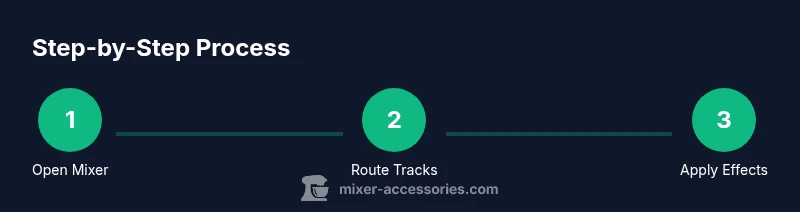
Launch FL Studio and open the mixer view (default shortcut is F9 or through the View menu). Take a quick tour of inserts, sends, buses, and the master track to understand signal flow before changing anything.
Tip: Use the F9 shortcut to quickly toggle the mixer on/off for reference. - 2
Route a track to an insert
Select a channel in the Channel Rack, then assign its output to a specific mixer insert. This establishes where the track’s signal will be processed and makes it possible to insert plugins directly on that path.
Tip: Route related tracks to adjacent inserts to keep your session organized. - 3
Add an insert effect chain
On the chosen insert, add EQ, compression, or saturation as needed. Reorder plugins to place dynamics before tonal shaping for a cleaner signal, then adjust each plugin’s gain and thresholds carefully.
Tip: Keep plugin counts lean; too many plugins can muddy the sound. - 4
Create a reverb/delay send
Right-click a track’s send to route a portion of that track to a shared bus (for reverb or delay). Adjust the send level and the bus processor to taste without overdoing ambience.
Tip: Use subtle sends on most tracks to avoid a wash of reverb. - 5
Build a submix bus
Group related inserts onto a bus insert, then apply shared processing like compression or EQ. This helps glue the group and provides a centralized control point.
Tip: Label and color-code buses to match their source tracks. - 6
Balance the master chain
Monitor the master meter as you adjust levels. Aim for healthy headroom, avoiding sustained clipping, and apply gentle limiting if needed to reach your target loudness.
Tip: Reference against a diffuser or reference track to calibrate loudness. - 7
Tidy up with gain staging
Fine-tune input and output gains on individual tracks so no single path dominates. Proper gain staging improves clarity when you add subtle processing later.
Tip: Boost or cut at the right stage; avoid large, sudden changes in multiple places. - 8
Save a mixer template
Once you’re happy with routing and processing, save a mixer template so you can reuse the same setup in new projects. This saves time and maintains consistency.
Tip: Include color schemes and track group labels in the template. - 9
Test with a full arrangement
Play a full arrangement to test the end-to-end signal flow. Check dynamics, panning, and effects in context, then iterate as needed.
Tip: Play through slowly and listen for ghost notes or phase issues.
Your Questions Answered
What is the FL Studio mixer and what does it do?
The FL Studio mixer is the central hub for routing, processing, and balancing audio across channels. It hosts inserts, sends, and the master track.
The mixer handles balance and effects for your tracks.
How do I route tracks to the mixer?
Select a track and assign its output to a specific mixer insert. This defines where the track’s signal will be processed.
Route tracks to inserts or buses to start processing.
What is the difference between inserts and sends?
Inserts apply effects directly on a channel; sends route signal to a shared bus for group processing.
Inserts are channel-specific; sends feed shared ambience.
Can I save mixer templates?
Yes. You can save mixer presets or project templates to reuse routing and bus layouts.
Templates help you reuse a proven routing setup.
Why is my mix muddy or clipped?
Check gain staging on individual tracks and the master. Reduce levels where needed and use mild compression if necessary.
Fix levels first, then refine with gentle dynamics.
Should I use parallel processing?
Yes, sparingly. Parallel compression or saturation can add depth but overdoing it can squash dynamics.
Parallel can add life if used with restraint.
Watch Video
Top Takeaways
- Plan routing before mixing begins.
- Differentiate inserts and sends early.
- Group tracks with buses for coherence.
- Monitor headroom and avoid clipping.
- Save templates for future projects.