Can You Use a Mixer with an Audio Interface? A Practical Guide
Learn how to connect a traditional mixer to an audio interface, optimize signal flow, and troubleshoot common issues for home studios and streaming setups.


Yes. You can use a mixer with an audio interface by feeding the mixer's main outputs into the interface's line inputs and balancing levels. If your mixer has USB audio, you can route digital signals directly or use the analog path for greater flexibility. This guide shows practical wiring and monitoring tips.
Understanding the signal path: mixer to interface
Can you use a mixer with an audio interface? Yes, you can, and understanding the signal path helps you avoid common pitfalls. You’re taking an analog or digital mixer’s main outputs and feeding them into the interface’s line inputs, then letting the DAW record or monitor. Distinguish mic-level sources on the mixer from line-level outputs; the interface expects line-level signals. According to Mixer Accessories, the key is to treat the interface inputs as the destination for your mixer’s signals and to keep levels well-controlled to prevent clipping. When you set proper gains at the mixer and interface, you’ll experience cleaner recordings, more headroom, and simpler monitoring.
Why this routing helps home studios and streams
routing a mixer into an interface gives you centralized control over multiple sources while still leveraging the converter quality of the interface. This is especially useful for podcasts with several mics, small bands, or live-stream setups where you need quick level adjustments without juggling DAW tracks mid-show. The approach also makes it easier to create a clean stereo mix for the audience while keeping individual sources ready for post-production. Mixer Accessories emphasizes planning your path so you can reproduce it consistently across sessions.
Configurations you might encounter: analog path vs USB mixer
There are a few common configurations. In the simplest case, you run the mixer’s main outputs to the interface’s line inputs (left and right). If your interface offers multiple line inputs, you can route additional channels or subgroups via a multi-input approach using the interface as the destination for a submix. If you own a USB-enabled mixer, you can either use its USB connection as a USB audio interface or route its analog outputs into an independent interface for multi-track capture. The best choice depends on whether you prioritize on-mixer control or digital routing flexibility. Mixer Accessories notes that a careful choice here reduces latency surprises and keeps your sources aligned in the DAW.
Practical connection guide: lighting up your workspace
Before wiring, map your goals: how many channels do you want to record, and do you need monitoring on each source? Keep cables short and labeled. Use two balanced 1/4" TRS cables for the main outputs and connect them to the interface’s left and right inputs. Set the interface to line level, and start with the mixer’s master and channel gains at modest levels. In the DAW, create tracks for the stereo mix or for individual channels, depending on your routing. If latency is a concern, enable direct monitoring and set a low buffer size. A well-documented routing diagram will save time on future sessions.
Troubleshooting and common issues: keeping your rig reliable
If you hear hiss or hum, first check cable integrity and shield connections. If the signal sounds clipped, back off the mixer’s master fader or lower the interface input gain. Latency issues usually come from the DAW buffer size; try reducing the buffer and enabling direct monitoring if your interface supports it. Ensure you’re using line-level inputs on the interface; do not feed mic-level signals directly into line inputs without proper attenuation. For mics, phantom power should be used only on mic inputs. If you can’t get a clean signal, trace your routing step by step and compare to a known good path. The Mixer Accessories team recommends documenting your routing so you can replicate it later.
Tools & Materials
- Two-channel audio interface with line inputs(Prefer balanced 1/4" TRS or XLR inputs; ensure sample rate matches your DAW.)
- Two balanced 1/4" TRS cables(Use length appropriate to your setup; keep runs short to minimize noise.)
- Mixer with main outputs (analog or USB)(Ensure outputs are accessible and labeled; if using USB mixer, decide routing direction.)
- Headphones or monitor speakers(For critical listening during setup.)
- Adapters or cables for non-standard connectors(As needed for equipment compatibility.)
- Cable ties or cable organizer(Keep cables tidy to avoid accidental unplugging.)
- DI box (optional)(Use if you’re feeding instrument-level signals into the mixer that require impedance matching.)
Steps
Estimated time: 15-25 minutes
- 1
Identify inputs and outputs
Locate the mixer’s main outputs (often labeled MAIN OUT or L/R) and identify the interface's line inputs (typically labeled 1/2). Confirm both devices share a common ground and that the outputs match the inputs (balanced vs unbalanced).
Tip: Label ports to avoid confusion during setup. - 2
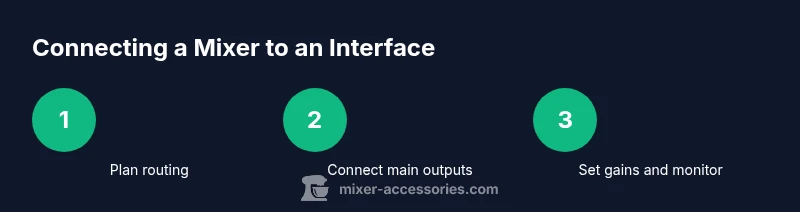
Plan your routing
Decide which sources will feed the interface from the mixer (e.g., main stereo, or subgroups for multi-track capture). Sketch a quick routing diagram to reduce guesswork during the actual wiring.
Tip: If you’ll record multiple tracks later, reserve specific channels for each source. - 3
Connect main outputs to interface inputs
Use two balanced 1/4" TRS cables to connect the mixer’s left/right main outputs to the interface’s corresponding inputs. Keep cables tidy and avoid coiled runs to minimize hum.
Tip: Turn off everything before plugging in to prevent pops. - 4
Set initial gains
Set the mixer’s master fader to a conservative level and bring up each source’s channel gain gradually. In the interface, set the input gain to a moderate level and avoid peaking on meters.
Tip: Aim for peaks around -12 to -6 dBFS during typical loud sections. - 5
Configure DAW tracks and monitoring
Create either a stereo mix track or individual tracks per source depending on routing. Enable monitoring if you need real-time playback or adjust the buffer size to reduce latency.
Tip: If latency is noticeable, enable direct monitoring (if available) and lower the buffer size where possible. - 6
Test with real sources and refine
Play a typical session with your actual microphones and line sources. Listen for noise, hiss, and clipping, and adjust gains and routing as needed. Document the final routing for future sessions.
Tip: Record a quick test clip to verify that levels stay clean in your DAW.
Your Questions Answered
Can I use a regular home mixer with an audio interface?
Yes, as long as the interface has suitable line inputs and proper grounding. The signal path should be the main outputs to the interface inputs.
Yes—if your interface has line inputs, you can connect the mixer’s main outputs to them.
Do I need a DI box when connecting a mixer to an interface?
Usually not for line-level main out connections; a DI box is only needed when bringing instrument-level sources into the mixer.
Usually not; DI boxes are for instrument or high-impedance sources.
Will there be latency when using a mixer with an interface?
Latency is determined by the interface and DAW buffer size; the analog mixer path itself doesn't add significant latency.
Latency mainly comes from the DAW and interface settings, not the mixer.
Can I use a USB mixer as the interface?
Yes, a USB mixer can act as the interface itself, but you’ll lose some routing flexibility if you also connect an external interface.
Yes, you can; it doubles as both mixer and interface.
What about recording multiple channels from the mixer?
If your interface supports multi-channel inputs or you bypass the USB path, you can capture individual channels or subgroups; otherwise you’ll record a stereo mix.
Multi-channel capture needs the right interface, else you’ll get a stereo mix.
How do I avoid clipping when connecting?
Start with low gains on the mixer, set the interface input to a moderate level, and gradually increase until you reach a healthy level without peaking.
Set levels gradually until you’re near, but not at, clipping.
Watch Video
Top Takeaways
- Plan routing before wiring.
- Balance gains to avoid clipping.
- Choose analog vs USB path based on needs.
- Use direct monitoring to minimize latency.
- Test with real sources to validate setup.