Mixer or Audio Interface for Streaming: A Practical Guide
Analytical guide comparing mixer vs audio interface for streaming. Learn signal paths, latency, inputs, and setup tips to help cooks, bar enthusiasts, and audio hobbyists choose the right gear.


Streaming setups often hinge on whether you should use a mixer or an audio interface. For most solo streamers, an audio interface provides clean sound with simple USB connectivity. A mixer becomes advantageous when you need multiple mics, on-screen talkovers, or live routing to effects. In short, start with an interface for simplicity, and consider a mixer if your show grows in inputs and routing needs.
Understanding the Streaming Workflow: Where a Mixer or Interface Fits
According to Mixer Accessories, the best gear choice begins with a clear streaming workflow. Ask yourself how many sources you expect to manage simultaneously: microphones, a guitar or keyboard, a guest, a webcam, and your mix for chat or music playback. The audio path should be as simple as possible while keeping high fidelity and reliable monitoring. For many home setups, the focus is on clean preamps, straightforward routing, and dependable software integration with tools like OBS or Streamlabs. For the target audience of home cooks, bar enthusiasts, and audio hobbyists, the goal is to balance ease of use with flexible control. This section lays out the fundamental differences in signal paths between a traditional mixer and a modern USB audio interface, and how those differences translate to real streaming scenarios.
Core Differences: Signal Path, Routing, and Latency
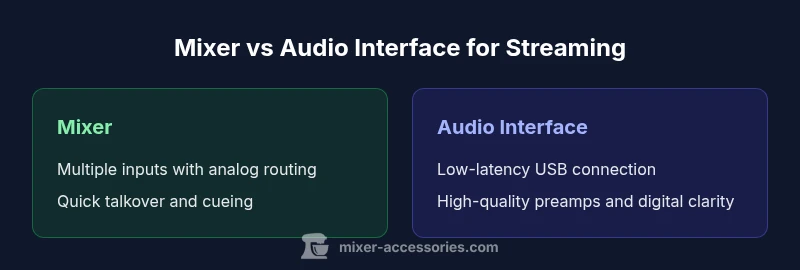
The core differences center on signal path architecture and how traffic is directed inside the device. A mixer provides analog signal routing with submixes, aux sends, and quick-handling of multiple inputs without routing through a computer. This arrangement yields robust on-stage-style control and immediate cueing. An audio interface, by contrast, is primarily a digital conduit: inputs feed digital converters, then the data travels via USB or Thunderbolt to your computer, where software handles mixing, effects, and monitoring. The latency you experience depends on the interface’s driver model, buffer size, and computer performance. In practice, a well-chosen interface with low buffer sizes can deliver near-zero perceived latency, enough for live monitoring during a stream. The trade-off is that complex live routing and accessibility of multiple submiks are often easier to handle on a dedicated mixer. For streaming with software like OBS, the interface setup tends to be simpler, while a mixer can reduce the number of software routing decisions you must make.
When a Mixer Makes Sense: Multi-mic Guests, Talkovers, and Live Effects
If your streaming format includes guests, table-talk, or live demonstrations, a mixer’s physical controls and submixer routing offer tangible benefits. You can assign each mic to its own fader, create quick talkover ducking, and send a separate mix to your stream, your local recording, and your guests’ headphone cues. Built-in effects or assignable EQs can shape voices on the fly without latency concerns tied to computer processing. For hobbyist setups, this means fewer software layers to juggle during a live session, which reduces the risk of misrouting a feed or forgetting to mute a mic. However, not all mixers are created equal; budget models may have noisy preamps or limited bus options. When evaluating a mixer for streaming, focus on mic preamp quality, the number of usable subgroups, reliable cueing, and the ease with which you can integrate with your streaming software.
When an Audio Interface Makes Sense: Clean USB Audio, Studio-Grade Preamps, and Modularity
Interfaces shine when your priority is pristine sound through a single USB connection to your computer, with straightforward routing into OBS, Streamlabs, or your preferred platform. Modern interfaces offer high-quality mic preamps, low self-noise, and transparent AD/DA conversion, which translates to clearer voice and cleaner music tracks. For most streamers, an audio interface provides a reliable path to your software mixer, letting you layer scenes and effects without contending with hardware routing. Interfaces also tend to be more compact and portable, ideal for on-the-go streams from a laptop or a compact home studio. The downside is that when you need many mic sources or hands-on on-air control, you'll either add hardware or replicate complexity in software. So, weigh the number of inputs you need, your preferred monitoring method, and how much control you want at the hardware level.
Connectivity and Compatibility: Computer, OS, and Streaming Software
Connectivity choices shape how smoothly your gear integrates with your live stream. A mixer can connect via analog outputs to speakers and a separate USB or audio interface path for the computer. Many compact mixers now offer USB-C or USB-B type connections that present a separate stereo output for the computer, while others implement USB returns for multi-channel digital routing. Interfaces typically connect via USB, USB-C, or Thunderbolt, and are recognized by most operating systems with minimal driver effort. OBS, Streamlabs, and other streaming software typically treat an interface’s input as a single device and a mixer as a multi-channel device, requiring different scene routing. If you run on macOS, Core Audio is generally forgiving; Windows users often benefit from ASIO drivers. Always confirm driver availability for your OS and the software you plan to use, as this is a common source of setup friction.
Latency, Monitoring, and Cueing: What Streamers Need to Know
Latency is not solely a function of the device but also of the setup and software settings. With an interface, you control latency by adjusting buffer sizes, sample rate, and the CPU load of your streaming software. Direct monitoring offered by many interfaces lets you hear inputs with negligible delay, which is critical for talk, timing, and cueing. In contrast, a mixer’s analog path can deliver on-device monitoring with very little perceptible delay, though you may still encounter digital latency if you route signals back into a computer for recording or processing. For streamers, the best practice is to enable direct monitoring where possible, minimize routing layers, and test a few buffer size configurations before going live. This avoids the frustrating moment of hearing a delayed cue or mis-timed talkovers.
Sound Quality and Dynamic Handling: Preamps, Gain Staging, and Mic Types
Preamps matter, but the bigger question is how you calibrate levels to avoid clipping and noise. With a mixer, you’ll use gain knobs and faders to establish individual mic levels before the signal feeds onward. This approach gives you tactile control of vocal warmth, sibilance, and plosives in real-time. An audio interface, by comparison, relies on software routing and accurate gain staging within the device’s digital front end. The quality of the mic preamps, the phantom power option for condensers, and the dynamic range of the inputs all influence overall clarity. For streaming, invest in a good microphone with proper pop filtering and a quiet room; combine that with a device that provides clean, low-noise gains. While price often correlates with a device’s headroom, other factors like room acoustics and microphone technique play significant roles.
Setup Scenarios: Live Stream vs VOD, Mobile vs Desktop
Live streams demand speed and resilience; VOD editing offers more room for post-processing. A mixer side-step allows fast rough mixes and hands-on mutes, while an interface supports precise control within your software. The choice may vary when you stream from a laptop at a coffee shop or from a dedicated home studio. If you travel with gear, portability becomes a decisive factor: compact interfaces are easier to carry, while small mixers may be heavier but still manageable if you need built-in cueing and more input channels. Consider whether you need a dedicated monitor path for co-hosts, or if you’ll rely on software-based monitoring. clarify your workflow and pick components that align with your stream’s rhythm rather than the most expensive gear.
Budgeting Across Use Cases: Entry-Level to Pro Gear
At the lower end, compact interfaces deliver reliable sound with minimal setup and a single USB connection. Mid-range options bring a couple more inputs and better preamps, while high-end devices offer multi-channel input, advanced routing, and premium drivers. When combining a mixer, you gain hands-on control that can simplify live talk and guest management, but you may spend more on hardware and cabling. The budget decision often comes down to whether you value tactile control (mixer) or compact, clean USB audio with software routing (interface). The best path is to map required inputs, decide on preferred monitoring, and then align with a brand and warranty you trust. For a growing show with guest turns, you might upgrade gradually as your needs expand.
Practical Configuration Guides: Quick Start for Common Setups
This section offers concrete, ready-to-try configurations. Example A: Solo streamer using an audio interface: connect mic to interface, route to OBS as a single input, enable direct monitoring, and add a simple music track via your DAW or streaming software. Example B: Small talk show using a compact mixer: route two mics to separate channels, create a dedicated mix for the stream, and use the monitor/cue to trouble-shoot. Example C: Guest-heavy stream with a USB mixer/interface mix: build a main mix and a separate cue for producers and guests. Remember to label cables, test mic placement, and check your streaming software’s audio scene routing before going live.
Maintenance and Longevity: Care, Durability, and Upgrades
To extend gear life, keep dust off, avoid exposure to moisture, and store cables neatly. Clean knobs and faders with gentle, non-lubricating cleaners; ensure that power supplies are stable and that you use surge protection. Periodically check cables for wear and ensure firmware or driver updates are installed when provided by the manufacturer. If a device becomes unreliable or lacks drivers for your updated computer OS, it may be time to consider an upgrade while preserving a backup plan.
Common Mistakes and How to Avoid Them
Common errors include overloading inputs, neglecting proper gain staging, and relying on software to fix a hardware-level problem. Another frequent issue is underestimating the importance of monitoring and cueing, leading to awkward delays or mis-timed talkovers. Proper setup involves pre-planning the signal flow, labeling each input, and performing a dry-run before going live. A robust backup plan and a simple, repeatable setup can prevent many headaches during a broadcast. The key is to keep the workflow lean and to practice your mic technique so your voice remains clear and consistent.
Comparison
| Feature | Mixer | Audio Interface |
|---|---|---|
| Input count | 2-12+ channels (model dependent) | 1-8 mic/line inputs plus instrument/line inputs |
| Latency | Very low with direct monitoring on hardware | Low when using proper drivers and small buffer sizes |
| Routing flexibility | High (submixes, aux sends, built-in effects) | Moderate (software routing, master mix) |
| Setup complexity | High (hardware routing, possible stage cues) | Low to moderate (USB connection, software routing) |
| Best for | Guest-heavy streams, on-air talkovers, live effects | Solo or small-team streams with clean USB audio |
| Price range | Mid to high | Low to mid |
| Portability | Moderate to heavy depending on model | Typically compact and portable |
| Sound quality emphasis | Analog warmth and hands-on control | Digital clarity with high-quality preamps |
The Good
- Direct tactile control with multiple inputs (mixer)
- Flexible live routing and monitoring
- Fewer software routing steps for quick setup
- Better for guests and on-air talkovers
Negatives
- Bulky and potentially more expensive
- May require more cabling and maintenance
- Software routing can be less predictable for some workflows
Audio interface is the go-to for simple, high-fidelity streams; mixer excels when you need multi-mic control and live routing.
Choose an interface for straightforward, dependable sound and easy software integration. If your show grows to include several microphones or live guests, a mixer provides hands-on control and quick routing that can simplify on-air decisions.
Your Questions Answered
What is the main difference between a mixer and an audio interface for streaming?
A mixer provides tactile, analog routing and submiks for multiple mics while an audio interface focuses on clean digital conversion and USB connectivity. For many streamers, the interface simplifies setup; a mixer adds hands-on control for guests and live talks.
Mixers give you hands-on mic control; interfaces give you simple USB sound with software routing.
Do I need a mixer if I already have a USB microphone?
If you only use one mic, a USB microphone can be enough. If you plan multiple mics or guests, a mixer or a multi-input interface can expand your options and reduce software complexity.
One mic may be fine with USB, but more mics usually need more inputs.
Can a mixer double as an audio interface?
Some digital mixers offer USB audio interface modes, providing multi-channel digital routing. Check your model’s specs to see if it can serve as both hardware mixer and computer audio interface.
Many digital mixers can also work as an audio interface via USB.
How do I minimize latency on a live stream?
Use direct monitoring when available, keep buffer sizes modest, and reduce CPU load in your streaming software. Test a few configurations before going live to avoid noticeable delays.
Direct monitoring helps you hear in real-time; test before live use.
How should I budget for streaming gear?
Budget by use case: entry-level interfaces offer solid sound and simplicity; mid-range adds inputs and better preamps; professional setups add advanced routing. Plan for future growth and warranty.
Start with what you need now, then plan for upgrades as your show grows.
Top Takeaways
- Map inputs before buying any gear
- Prioritize direct monitoring to reduce latency
- Start with an interface, upgrade to a mixer as inputs grow
- Test OBS/Streamlabs routing before going live
- Label cables and practice your mic technique