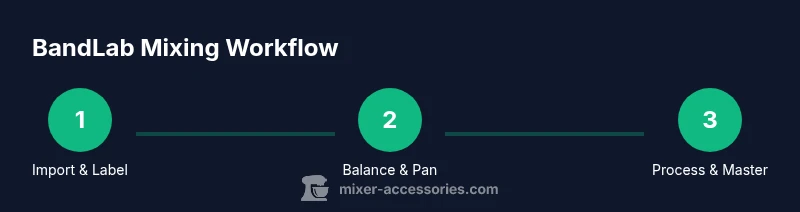
How to Mix on BandLab: A Practical DIY Mixing Guide
Learn how to mix on BandLab with a practical, step-by-step approach. Import stems, balance levels, apply EQ and compression, add effects, and master your track for streaming-ready results. A Mixer Accessories guide for home studios and hobbyists.


By the end of this guide, you’ll mix a BandLab project from start to finish. Import stems, set rough levels, apply basic EQ, compression, and a touch of reverb, then bounce a stereo master. To begin, create a BandLab account, gather your audio files, and use headphones or studio monitors for accurate monitoring.
Why BandLab for DIY Mixes
BandLab is a browser-based DAW that makes it feasible to learn and practice mixing without installing software on every machine. Its built-in mixer, effects, and collaborative features let home cooks who love music, bar enthusiasts working on playlists, and audio hobbyists experiment with a professional workflow. According to Mixer Accessories, accessibility matters as much as accuracy when you’re learning, and BandLab removes many setup barriers. The Mixer Accessories team found that starting with a clear, repeatable process yields faster progress for beginners and keeps projects organized as you experiment with different sounds. In this context, the goal of how to mix on bandlab is not to chase studio-perfect gear but to build reliable, repeatable techniques you can apply to real songs.
This guide emphasizes practical steps over theory alone, with concrete actions you can apply right away. You’ll learn how to import material, balance levels, shape tone with EQ, manage dynamics, add tasteful effects, and export a final master you’re confident sharing. The emphasis is on approachable, repeatable workflow that scales as you grow.
Organizing your project
Before you touch the knobs, set up a clean project environment. Create separate tracks for drums, bass, guitars, vocals, and any sampler or loop content. Use consistent naming like Drums_Kick, Bass_Bassline, Vocal_Lead, and FX_Snare to keep your session navigable. Color-coding tracks helps you distinguish sections at a glance and speeds up navigation during the mix. Establish a rough bus strategy early: group related tracks (drums, guitars, vocals) on bus channels so you can apply shared processing without muting individual elements. Finally, enable a high-quality monitoring chain by choosing the right output, whether you’re using headphones or studio monitors, so you hear the mix clearly as you work. This setup reduces guesswork later and helps you stay objective as you adjust levels and tone.
Importing and labeling audio tracks
Start by importing stems or audio files into BandLab’s project workspace. Clear labeling is crucial: name each track by instrument or part, and tag them with the section they belong to (Verse, Chorus, Bridge). If you have multiple takes, preserve them as alternate tracks or comped regions so you can compare different performances. Use a neutral color palette for neutrals (drums, bass) and warmer tones for lead parts (vocals, melodic lines) to avoid confusion. Before you proceed, verify sample rates and bit depth align with your final target; mismatches can cause latency or quality issues during exports. Keeping your import clean makes the rest of the mix more predictable and easier to adjust later.
Core mixing concepts: levels, pan, and buses
With tracks in place, your first goal is a solid rough mix. Start by setting level faders so the loudest elements sit around a comfortable baseline without clipping. Use panning to create space: drums centered, guitars and keys slightly left or right, and vocals near center. Group related tracks into buses (drums on Drum Bus, vocals on Vocal Bus) so you can process them together. This approach helps you maintain coherence across the mix and reduces the amount of individual adjustments you need to make. Remember that the most important decisions happen in the first pass; you can fine-tune later with EQ and dynamics, but a balanced rough mix provides a reliable reference for the rest of the work.
Setting a rough mix with solo/mute
A practical rough mix relies on soloing and muting to check individual parts in isolation. Solo a track to hear its exact contribution, then mute to see how it fits within the full context. This helps you identify clashes, such as frequency masking between voice and guitars or kick drum overpowering the bass. Use conservative bus processing during the rough mix; you’ll refine it in later steps. Pro tip: switch between solo/mute views and the group bus to confirm that the overall energy remains consistent when you reintroduce elements, ensuring your headroom stays intact.
Using EQ to shape each track
Equalization is your primary tonal tool. Apply a gentle high-pass filter on non-bass tracks to remove rumble, and notch out problem frequencies (for example, a ringing 2.5–4 kHz on guitar or vocal sibilance). Boosts should be modest and targeted, avoiding broad sweeps that pull the mix into sounding harsh. For drums, carve space for the kick and snare by carefully shaping the midrange. EQ decisions should be guided by listening in the intended playback environment and by reference tracks. A structured approach—filter first, then sculpt with boosts or cuts—helps maintain clarity as you add more processing.
Dynamic processing: compression and limiting
Dynamics control is essential for a cohesive mix. Apply gentle compression on individual tracks to control level differences, using a modest ratio and slow attack to let transients through. For the drum bus or vocal bus, a light bus compression can glue the elements together and add perceived loudness without squashing dynamics. After dynamics, consider a limiter on the final master bus to manage peaks and preserve headroom. The key is restraint: minor level adjustments repeated across tracks are more musical than a single aggressive move on one element. Always compare with and without compression to ensure you’re enhancing the performance, not squashing it.
Effects and spatial placement: reverb, delay, modulation
Effects add space and character, but they can also muddy a mix if overused. Start with a small amount of reverb on vocals and snare to create depth without washing the mix. Delays can provide tempo-synced repeats on vocals or guitars; keep feedback and level low to avoid clutter. Modulation effects (chorus, flanger) can add width on guitars or synths, but use them sparingly on the main vocal. In BandLab, you can route effects to buses so you apply them to multiple tracks consistently. This approach preserves the punch of the core elements while giving the mix an engaging sense of space.
Master chain and loudness considerations
The mastering stage should offer the final polish and loudness consistency. Apply a gentle limiter or compressor on the final stereo bus to control peaks, followed by a broadband EQ for subtle tonal balance. Avoid drastic boosts at mastering; the goal is to preserve dynamic intent while achieving competitive loudness. Compare your master against a reference track that matches your genre’s loudness and tonal balance, adjusting as needed. Remember that mastering in BandLab is about finishing the track cleanly for sharing, not about replicating a professional studio workflow word-for-word.
Finalizing, exporting, and sharing
Before exporting, ensure all automation is rendered and any unused takes are removed to minimize file size. Choose a lossless format like WAV for archiving, and a compressed format like MP3 for quick sharing if needed. Name the final file clearly and document the project settings so you can reproduce the result later. If you plan to collaborate, enable BandLab’s sharing features and use versioning so others can review changes without overwriting your master. This final step is where your careful planning pays off in a deliverable you’re proud to share.
Troubleshooting common issues in BandLab
Mixing online can introduce latency, clip issues, or routing surprises. If you hear latency, check your audio interface settings and BandLab’s monitoring preferences. Clipping indicates levels are too high; reduce the track or bus gains and recheck your meter values. If a track sounds hollow, revisit EQ and panning to restore space. Collaboration can reveal compatibility quirks; confirm project settings with teammates and keep backups of alternate versions. By anticipating these common issues, you keep momentum rather than getting stuck tweaking indefinitely.
Tools & Materials
- BandLab account(Create or sign in to your BandLab account to access the mixer and project workspace.)
- Stable internet connection(BandLab runs in the browser; a reliable connection prevents dropouts during editing.)
- Source audio files (WAV/MP3)(Gather stems or multi-tracks for a real mix or use one-build tracks for a quick demo.)
- Headphones or studio monitors(Choose a neutral monitoring chain for accurate decisions; avoid consumer headphones for critical work.)
- Reference track(A track in a similar style to guide tonal balance and loudness targets.)
- MIDI keyboard or external audio interface(Optional gear that can speed up input and routing in BandLab.)
Steps
Estimated time: 90-120 minutes
- 1
Open or create BandLab project
Launch BandLab, start a new project, and name it clearly. This initial step establishes your workspace and lets you set a stable baseline before you import assets.
Tip: Tip: Save the project frequently and enable versioning if available to track changes. - 2
Import stems and organize tracks
Import all audio files and label each track by instrument or part. Group related tracks on buses to simplify processing later.
Tip: Tip: Use color-coding to quickly identify drums, bass, vocals, and synths at a glance. - 3
Set rough levels
Slide faders to establish a rough balance where the vocal sits front and center without clipping any bus. Ensure each element is audible in solo and in the full mix.
Tip: Tip: Start with the most important element (usually vocals) before balancing supporting parts. - 4
Pan and space planning
Place elements in the stereo field to create space. Subtle panning on guitars and backing vocals helps the mix breathe.
Tip: Tip: Avoid panning all elements hard left or right; maintain a cohesive center for critical parts. - 5
Apply light EQ
Use high-pass filters to remove rumble, cut problematic bands, and shape the tonal balance of each track without overdoing boosts.
Tip: Tip: A little EQ goes a long way; listen in context and adjust in small increments. - 6
Add gentle compression
Insert compression on individual tracks or buses to control dynamics. Use transparent settings to glue parts together without losing transients.
Tip: Tip: Compare with and without compression to ensure you’re improving consistency, not dulling energy. - 7
Light effects and space
Apply subtle reverb and a touch of delay where appropriate. Keep effects modest on lead parts to preserve clarity.
Tip: Tip: Use buses for shared effects to maintain a consistent sense of space across the mix. - 8
Create a simple master chain
Apply a mild limiter and tone control on the final bus to achieve even loudness and a polished finish.
Tip: Tip: Avoid excessive limiting; preserve some headroom for playback on different systems. - 9
Reference and refine
Compare your mix to a reference track; adjust tonal balance and dynamics to align with the target genre.
Tip: Tip: Keep notes on changes for each listening session to track what works. - 10
Export your stereo master
Render a high-quality WAV master for archiving and an MP3 version for sharing. Include metadata and a descriptive filename.
Tip: Tip: Use consistent sample rate and bit depth across exports for compatibility. - 11
Share and gather feedback
Publish the track to BandLab or export for collaborative review. Encourage constructive feedback to improve future mixes.
Tip: Tip: Create a versioned backup before making major changes based on feedback. - 12
Backup and reflect
Backup project files and keep a listening log of what you learned in this session. Use it to inform your next mix.
Tip: Tip: Regular backups prevent loss of work and speed up future remixing.
Your Questions Answered
Is BandLab free to use for mixing, and are there limits on projects?
BandLab offers a free tier with many mixing features. Some advanced collaboration options or storage perks may be part of paid plans, but you can complete full mixes in the free version.
Yes. BandLab has a free plan with robust mixing tools, ideal for learning and small projects. You can upgrade later if you need extra features.
Can I import stems or multiple audio files into BandLab for mixing?
Absolutely. BandLab supports importing individual tracks or stems, which you can label and route to buses for a structured mix.
Yes, you can bring in multiple audio tracks and organize them for mixing right inside BandLab.
Does BandLab include mastering capabilities or should I export and master elsewhere?
BandLab provides basic mastering tools within the project workflow. For advanced mastering, you can export and process in another tool, then re-import if needed.
BandLab has built-in tools for finishing your track, but you can also use other software for more advanced mastering.
How do I export a stereo mix from BandLab?
Export from the project as a stereo WAV for archiving and an MP3 for sharing. Choose the format that fits your distribution needs.
Export your final mix as WAV for best quality, and an MP3 if you need a smaller file for sharing.
Can I collaborate with others on BandLab projects?
Yes. BandLab supports real-time collaboration and track sharing, letting others contribute or review your mix.
Absolutely. BandLab makes it easy to collaborate with others on the same project.
What playback settings should I use for different listening environments?
Aim for a balanced mix that translates to headphones, computer monitors, and car audio. Start with neutral monitoring and adjust for consistency across environments.
Make sure your mix sounds good on headphones, monitors, and small speakers by checking references in each environment.
Is it okay to overdo effects or should I keep them minimal?
Favor subtlety. Overusing effects can clutter the mix; use them to enhance space and character without masking problems.
Keep effects tasteful—less is often more when you’re building a clear mix.
Watch Video
Top Takeaways
- Balance first, then shape tone
- Use buses to simplify processing
- Reference tracks guide tonal targets
- Keep headroom for mastering
- Save versions to compare changes