Recording with a Mixer: A Practical Guide for Home Studios
Learn how to set up, route, and record with a mixer for home studios. This guide covers signal flow, gain staging, monitoring, and practical tips for vocal, instrument, and multi-mic setups.


You can record with a mixer by connecting your microphone(s) to the mixer's preamp inputs, routing the main mix into your audio interface, and then capturing the signal in your DAW with careful gain staging and monitoring. This approach gives you hands-on control of level, routing, and latency management while keeping your channel count organized. Expect to spend time on setup, test records, and calibration to maximize headroom and minimize noise.
Why recording with a mixer matters
According to Mixer Accessories, a mixer can streamline home-recording workflows by giving you hands-on control of gain staging, routing, and monitoring. For home cooks who also tinker with kitchen playlists or bar playlists, this setup makes it easier to manage multiple mics for interviews, vocal takes, or ambient room sound without swapping cables constantly. A mixer helps you set clean signal paths before the audio interface, reducing the likelihood of clipping and unwanted noise. The result is a more predictable signal, faster edits, and a workflow that scales from a single vocal take to a small drum or acoustic ensemble. The mixer acts as a central hub where inputs, monitor mixes, and talkback can be controlled with physical tactile feedback—a feature many hobbyists find both intuitive and satisfying.
From a practical perspective, the mixer’s preamps, pad switches, phantom power, and direct outs give you options that a bare USB interface cannot provide. By decoupling mic gain from the interface input, you can maintain a healthy signal range and avoid unnecessary fader jumps during recording sessions. This is especially useful for vocal takes, where a consistent, controlled level makes it easier to compress or EQ later in the DAW. Throughout this guide, you’ll see how to translate these advantages into reliable, repeatable recordings that work across genres and setups.
In addition to signal control, a mixer often offers convenient features like built-in effects, talkback to performers, and headphone metering. These elements reduce setup time and enable performers to hear themselves accurately without latency surprises. While a dedicated audio interface and a well-placed microphone setup can yield outstanding results, a Mixer Accessories–informed approach shows that a thoughtfully used mixer can be a powerful, space-saving tool for hobbyist studios.
Core signal flow for a mixer-based setup
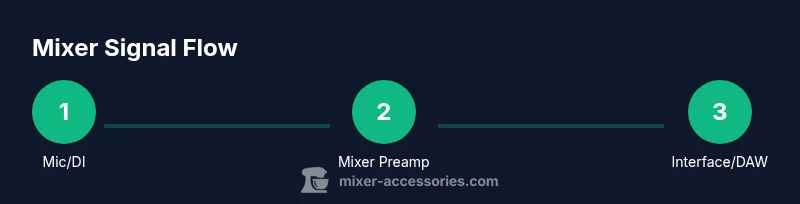
A clear signal path is essential for predictable results. The typical chain is: Input devices (mic/DI/instrument) → mixer preamp stage → mixer main mix (or subgroups) → line-level output to the audio interface → DAW tracks. This arrangement keeps the mic-level signal under control before it reaches the interface, enabling you to push or pull gain at the mixer with confidence. Lighting-fast decisions about level, pan, and routing can be made on the hardware, reducing the risk of digital clipping and latency during tracking.
Before you press record, draw a quick mental diagram of your inputs and outputs. If you’re recording multiple sources, consider creating subgroups on the mixer (e.g., all vocal mics on Bus 1, acoustic guitar on Bus 2). Route the buses to your interface’s line inputs as needed. In the DAW, label each input clearly so you can track which microphone or instrument corresponds to which track. A consistent naming convention saves time during editing and mixing, especially when you revisit the project days later.
Another practical tip is to route a direct-out or pre-fader send from each channel to a dedicated stereo mix for monitoring. This creates a clean, customizable cue for performers, allowing them to hear a balanced version of the take without affecting the main track’s level. This approach is particularly helpful for vocal or ensemble takes where performers must hear themselves against a reference track or metronome without adding latency to the main signal path.
Input choices and mic techniques
When you rely on a mixer for recording, the choice of inputs becomes crucial. Dynamic microphones are often forgiving in untreated spaces, producing robust vocal and spoken-word takes with minimal proximity effect. Condenser mics offer more detail and sensitivity, but they also pick up room acoustics and noise more readily. If you use condensers, ensure phantom power is appropriate for the mic model and that the room is reasonably controlled. For instrument recording, direct input (DI) or instrument mics can be routed to separate channels on the mixer to preserve tonal balance.
Consider using a DI box for guitars, basses, keyboards, and line-level instruments when you want a clean signal with minimal noise. If you have multiple mics, arrange them logically: close mics for direct sound, room mics for ambiance, and any booth or instrument mics on separate channels. Label channels to avoid confusion during a session. Keep the mic placement consistent between takes to minimize drift in tone and spatial image, and capture a few seconds of ambient room tone between takes to facilitate seamless editing later.
Phantom power is a common point of confusion. Condenser mics generally require it, while dynamic mics do not. If you’re uncertain whether a particular mic supports phantom power, check the mic’s documentation before enabling it on the mixer. A quick rule of thumb is to turn phantom power on only when you’re about to record a condenser mic and turn it off for dynamics to avoid potential noise or damage to non-phantom-safe gear.
Gain staging and headroom
Gain staging is the process of setting levels across all devices so that you maximize signal quality while avoiding distortion. Start by bringing the mic preamp gain on the mixer to a moderate level and bring up the interface input until the waveform lights show healthy activity without clipping. The goal is to place the peak levels around -12 dB to -6 dB on the DAW meters for most vocal and instrument takes; this leaves headroom for transients and processing in the mix. If you hear any crackling or popping, reduce gain to avoid clipping and re-check cable integrity.
Pro tips for gain staging:
- Use the mixer’s pad switch if available to prevent overload when miking loud sources.
- Monitor meters on both the mixer and the interface to ensure signals stay well below clipping thresholds.
- During performance takes, watch for sudden hot spikes and adjust accordingly so you don’t chase level during editing.
Headroom is your friend. A tiny amount of headroom reduces the risk of digital clipping and preserves dynamics for compression and EQ in the mix. If you’re unsure about your level, run a short test take and examine the peak level in the DAW; if it hits -3 dB, you’re in the safe zone, but avoid letting the peak hit 0 dB.
Routing for stereo and multi-track recordings
A mixer can deliver both stereo and multi-track capabilities, depending on its outputs and the interface you’re using. For a straightforward stereo vocal take, route the stereo main mix to a single interface input, but for more complex sessions (vocals plus guitar and percussion), assign each source to its own channel on the mixer and route them to distinct inputs on the interface. This allows you to edit and process each track independently in the DAW, preserving the natural balance of the performance.
If your mixer has subgroup outputs, use them to create a clean, minimal path for monitoring or for a main stereo bus. Subgroups let you render an isolated version of a subset of tracks (e.g., all vocal mics) while keeping the rest of the session intact. Label each bus and track clearly in the DAW so you can quickly identify sources during mixing. When you need a quick rough mix, you can print a stereo bus of all sources, then switch to multi-track editing later for fine-grained control.
Monitoring and latency management
Latency is the delay between input and playback. This can be a nuisance when recording with a mixer, especially if performers hear themselves with noticeable lag. The best antidote is a combination of direct monitoring and low-latency routing through the interface. If your mixer supports direct monitoring, enable it and route dry signals to headphones. If not, check your DAW’s buffer size; a smaller buffer reduces latency but increases CPU load, so find a balance that your computer can handle without glitches.
Another practical strategy is to create a dedicated cue mix on the mixer for performers. A well-balanced cue lets performers hear themselves and the rest of the track in real time without chasing the input’s latency. Ensure the cue mix excludes elements that aren’t relevant to the performer to keep the signal clean and undistracting.
Recording vocals with a mixer: mic technique and processing
Vocals benefit from careful mic technique and thoughtful placement. Position the mic so your breath sounds aren’t intrusive, and adjust the pop filter distance to minimize plosives. For most home studios, a cardioid condenser in a treated corner gives a clear, present sound. Use a pop filter and keep the mic at mouth level to reduce proximity effect while maintaining intelligibility. On the mixer, set a moderate gain so the vocal stays clear without hitting the red. A light touch with EQ and compression during mixing will preserve natural dynamics and avoid making the vocal sound “squashed” or overly processed.
If you’re recording multiple vocalists, maintain consistent mic placement and use the same processing chain for cohesive results. For dynamic delivery, consider a light compression during tracking to prevent moments of loudness from peaking, but avoid over-compression that restricts natural expression. Revisit your takes with fresh ears after a short break to ensure you’re not chasing minor inconsistencies.
Recording instruments through a mixer: guitar, keyboard, and drums overhead
Electric guitars and keyboards with line-level outputs can pair well with a mixer’s instrument inputs. Keep instrument levels moderate and avoid pushing the mixer’s inputs into clipping. For drum overheads or percussion, use matched mics on adjacent channels and maintain consistent phase alignment by testing mic distance and angle. If your mixer has multiple line inputs, you can route drum room mics to a separate bus to control the drum’s overall presence in the mix without affecting the entire vocal track.
When recording, try to capture a few seconds of room tone on a separate track. Room tone helps during editing and helps in creating a natural blend in the final mix. If you’re using a DI for keyboards, ensure the DI’s output level matches your mixer’s line level to maintain consistent gain staging across sources.
Practical setups for common home studio scenarios
Home studios vary widely. A common, flexible setup uses a small 4- to 6-channel mixer with a USB interface. For a podcast or voice-only setup, you can mic two speakers, route them into separate channels, and use a stereo bus for a clean vocal mix. For singer-songwriters, route a single vocal mic on channel 1, an acoustic guitar on channel 2 (via DI or mic), and use a stereo bus for the main take. For a small band, dedicate two to four channels to mics (vocals, drums, and guitar) and route each to its own track in your DAW. The key is to practice consistent signal paths that you can repeat session after session.
Small, well-labeled rooms make a big difference. Acoustic treatment doesn’t have to be expensive—foam panels in critical reflection points and isolation helps reduce reflections. Positioning the mixer to minimize rattle or vibration is also essential; consider placing it on a stable stand or anti-vibration mat to prevent unwanted noise in quiet takes.
Troubleshooting common issues during recording
Noise, hum, and ground loops are common issues when recording with a mixer. Start by checking all cable connections and ensuring the mixer, interface, and computer share a common ground. If you hear a hum, test each input with a known good mic or instrument to isolate the offending channel. A quick movement of the faders and gain knobs can reveal a dirty pot or loose connector. Ensure phantom power is switched off for dynamic mics to avoid added noise and potential damage. If you experience latency, adjust the buffer size in your DAW and consider using direct monitoring if available.
Intermittent crackling is often caused by USB bus power instability or a faulty cable. Replace USB cables and verify that the interface drivers are up to date. Keep your workspace free of electrical noise from fans, lights, or other appliances that may introduce interference into your signal path. Regularly clean connectors and maintain cables to prevent corrosion or loose contacts that degrade signal quality.
Setup checklist before you press record
- Confirm mic and instrument inputs are connected to the mixer and routed to the correct interface channels.
- Confirm phantom power is enabled only for condenser mics that require it and disabled for dynamic mics.
- Verify gain staging on all channels, ensuring peaks do not clip at any point in the chain.
- Confirm cue and headphone monitoring levels are comfortable for performers.
- Run a quick test take to check for noise, latency, and level consistency, then adjust as needed.
This checklist helps you avoid avoidable mistakes and gives you confidence when you actually press record. A consistent starting point makes sessions more productive and reduces the time spent on troubleshooting later.
Maintenance and care for your mixer setup
Regular maintenance helps avoid noise and reliability issues. Keep the mixer and cables clean, checking USB or power cables for wear. Store cables properly to prevent kinks and fraying. Periodically inspect connectors and phantom power lines for corrosion or loose contacts. If the mixer has removable faders or knobs, clean them with electronics-safe contact cleaner and re-seat components to ensure smooth operation. Regularly re-check the signal path with test recordings so you notice changes in tone or level promptly.
Quick-start templates you can copy into your projects
Template A (Vocal + Acoustic Guitar): Channel 1 – Vocal Mic; Channel 2 – Acoustic Guitar (MIC or DI); Main Mix → Interface 1. Use a light compressor on the vocal, and keep the guitar dynamics natural. Create a stereo bus for the main take and save a separate rough mix for reference.
Template B (Multi-Mic Band Practice): Channel 1-2 – Vocals; Channel 3 – Drums; Channel 4 – Guitar; Channel 5 – Bass; Main Mix → Interface 1-2. Route subgroups to a stereo bus for a rough balance, then lock in the vocal and drum takes before editing the rest.
In all templates, label each channel clearly and save presets if your mixer supports them. This reduces guesswork in future sessions and helps build a reliable workflow you can scale as your setup grows.
Final notes: the Mixer Accessories approach to reliable recording
The Mixer Accessories team believes that a thoughtful, repeatable workflow is the backbone of good recordings. Start with a clear signal path and disciplined gain staging; use subgroups to manage complex sessions; and monitor with a cue mix for performers. While you can get excellent results with high-end gear, the real difference is consistency—the practice of setting up once, then repeating that setup for every session. With the right approach, you’ll reduce setup time, improve capture quality, and enjoy the process of making music and audio content. The Mixer Accessories team recommends adopting these steps as a baseline for most home studios, then refining them as your room and gear evolve.
Authority sources
- https://www.nist.gov/topics/acoustics
- https://www.osha.gov/
- https://www.aes.org
Tools & Materials
- Audio interface(At least 2 inputs with line-level outputs; USB-C or Thunderbolt preferred for low latency.)
- Mixer(4-channel or larger recommended for home studios; consider built-in subgroups.)
- Microphone(s)(Include dynamic for isolation and condenser for detail; plan for 1-2 mics minimum.)
- XLR cables(Balanced, 6-10 ft length is common; label to prevent tangling.)
- 1/4 inch TRS cables(For line-level and monitor connections.)
- Headphones(Closed-back preferred; use for accurate monitoring.)
- Mic stand(Stable stand with boom for vocal or instrument mics.)
- Pop filter(Useful for vocal tracks to reduce plosives.)
- DI box(Helpful for guitar/bass or keyboards with high noise potential.)
- DAW software(Any common DAW that supports multi-track recording.)
Steps
Estimated time: 30-60 minutes
- 1
Gather and arrange gear
Collect all inputs and ensure you have the mixer, interface, mics, cables, and monitor headphones. Place the equipment in a quiet, comfortable space with room to work. This initial organization saves you time later in the session.
Tip: Label cables and channels to prevent misrouting during a long session. - 2
Connect the mixer to the audio interface
Use the main outputs or designated line outputs from the mixer to the interface’s line inputs. Verify that the interface is selected as the DAW’s audio device and that the sample rate matches your project settings.
Tip: If your mixer has dedicated USB audio, disable it to prevent double-sourcing of the signal. - 3
Plug in mics and instruments
Connect mics to their desired channels on the mixer and connect instruments via DI or mic as appropriate. Set phantom power only for condenser mics that require it. Ensure all sources are routed to the correct bus or channel.
Tip: Physically label each mic on the mixer with a sticky tag for quick identification. - 4
Arm tracks in your DAW and set inputs
Create a new project and arm the channels corresponding to your mixer’s main outputs. Name each input clearly and apply any preferred monitoring preferences. Prepare a rough metronome or click track if needed.
Tip: Enable input monitoring on the DAW to verify signal presence before recording. - 5
Set initial gain on the mixer
Turn up each channel’s gain until the level peaks around -12 dB to -6 dB on meters. Avoid pushing to 0 dB to leave headroom for peaks and transients.
Tip: Use the pad switch if available for loud sources to prevent clipping. - 6
Create buses or subgroups for organization
Group related inputs (vocals, guitar, drums) on dedicated buses if your mixer supports it. Route the buses to separate interface inputs for multi-track recording and easier editing later.
Tip: A clean bus structure speeds up mixing and editing. - 7
Record a test take and listen critically
Do a short test take to check level, tone, and latency. Adjust mic placement, gain, and monitoring as needed before the full take.
Tip: Listen on headphones and speakers to catch any room resonance. - 8
Record the full take and monitor
Start the full recording with a comfortable cue mix for performers. Keep monitoring levels stable and avoid changes in EQ or dynamics during the take to ensure clean editing later.
Tip: Keep a few seconds of room tone at the end for easier editing.
Your Questions Answered
Do I need a mixer to record at home?
No — you can record with a dedicated audio interface and individual mics. A mixer, however, provides hands-on control, easier routing, multi-mic handling, and fast level adjustments that can be especially helpful in small spaces.
No, but a mixer makes routing and gain control faster for multiple mics.
What’s phantom power and when should I use it?
Phantom power powers condenser mics. Use it when you’re using condensers that require power. Turn it off for dynamic mics to avoid noise and interference.
Phantom power is for condensers; switch it on only when needed.
How do I minimize latency when recording with a mixer?
Use direct monitoring if available and keep the DAW buffer size as low as your system allows without glitches. Consider a dedicated cue mix for performers to avoid monitoring through the DAW.
Direct monitoring and a small buffer help reduce latency.
Should I record each mic on a separate track or a stereo bus?
For flexibility, record each mic on its own track and route a stereo mix for the final take. This gives you more control for editing and processing later.
Separate tracks give you more editing power later.
What’s the difference between a USB mixer and a dedicated interface?
A USB mixer can be convenient for quick setups but may limit routing. An audio interface dedicated to DAW work often yields lower latency and better preamps for multi-track recording.
USB mixers are handy; dedicated interfaces often offer better latency and routing.
Can I record with a single mic and a guitar through a mixer?
Yes. Use one channel for the vocal mic and another for the guitar’s DI or mic. This setup is common for singer-songwriters and small ensembles.
A two-channel setup works well for vocals and guitar.
Watch Video
Top Takeaways
- Set up signal flow clearly before recording
- Balance gains to avoid clipping while preserving headroom
- Route subgroups for easier multi-track management
- Monitor with a cue mix to reduce latency during takes
- Label everything to speed future sessions