Mixer to Computer: A Practical Connection Guide
Learn how to connect a mixer to a computer for recording, streaming, or podcasting. This guide covers USB mixers, external interfaces, routing in DAWs, latency tips, and troubleshooting with practical gear recommendations.


Why connect a mixer to a computer
For home studios, bars, or live streams, a mixer gives you hands-on control over multiple input sources and sends a clean signal to your computer. Connecting a mixer to your computer enables multi-channel recording, better cueing for podcasting, and more dynamic live mixing during streams. According to Mixer Accessories, starting with a clear goal helps you pick the right path—USB mixer for compact setups or an external audio interface for higher channel counts and flexibility. The core idea is to separate your mic and instrument levels from your computer’s input gain, then route those signals where you want them in your DAW or broadcasting software. This separation reduces noise and lets you adjust levels without touching the computer.
USB mixers vs external audio interfaces: which path to choose
USB mixers combine mixing and audio interface functionality in one device. They’re convenient for small setups, minimal cabling, and quick podcast or livestreaming. External audio interfaces typically offer higher channel counts, better preamps, and lower latency when paired with a computer. If you plan to record many sources or need pristine mic preamps, an interface plus a separate mixer might be worth the extra setup. Consider your goals, budget, and whether you value portability over expandability. Mixer Accessories recommends matching your choice to the number of inputs you actually use weekly and whether you need direct routing to multiple DAW tracks.
Understanding mixer inputs and outputs: what to connect where
Most mixers offer XLR microphone inputs, 1/4 inch line inputs, RCA inputs, and sometimes USB direct outputs. The typical workflow uses a USB bus for a direct signal to the computer or analog outputs feeding a dedicated audio interface. When connecting, you’ll map mic levels with gain, line inputs with proper sensitivity, and use the main out or control room outputs to feed your interface or computer. If you’re using a traditional mixer without USB, you’ll still record into your computer by sending a stereo mix through the interface’s line input. Clear labeling and a quick reference diagram prevent miswiring.
Cables and connections you’ll need: essential wiring for reliability
Start with a basic set of cables: XLR cables for mics, 1/4 inch TRS cables for line-level gear, and RCA cables for consumer devices. If you use an external interface, a USB-C or USB-A cable will connect the device to the computer. Some setups benefit from DI boxes or ground loop isolators to reduce hum if devices share a power source. Label cables and color-code by input to keep the workflow intuitive. A well-organized cable tree dramatically reduces setup time and troubleshooting.
Setting up in your DAW: routing inputs and outputs correctly
In your DAW, designate each track’s input to match the physical mixer's channel feeding it. For example, mic channels map to input 1 and 2, while stereo line inputs map to a stereo bus. If you’re using a USB mixer, ensure the DAW recognizes the mixer as an input device and route the main mix to a stereo output for playback. Create separate tracks for each mic or instrument and a master track for the final stereo mix. Save a preset so you can reproduce the exact routing quickly for future sessions.
Latency, monitoring, and buffer sizes: keep latency low without glitches
Latency is the delay between playing a source and hearing it through your headphones or monitors. To minimize latency, use a small buffer size in your DAW and select the lowest latency driver available. If the computer cannot handle a tiny buffer, increase it moderately while keeping monitoring enabled. Direct monitoring on many mixers can bypass the computer’s processing path, drastically reducing latency. Balance monitoring comfort with the DAW’s real-time processing needs to avoid clicks and pops.
Direct monitoring vs software monitoring: what to choose
Direct monitoring allows you to hear inputs through the mixer or interface before the signal hits the computer. This approach eliminates round-trip latency, which is ideal for performance, singing, or real-time tracking. Software monitoring routes the signal through the DAW, useful when you want effects or virtual instruments on the input but can introduce latency. A common solution is to enable direct monitoring for performance while using software monitoring sparingly for overdubs or monitoring effects.
Practical example setups: podcasting and music production
Podcasting: a small USB mixer connected to the computer with a single USB cable; one mic on channel 1, a second mic on channel 2, and a headphone output for monitoring. Music production: a 4-channel mixer feeding an audio interface, with separate channels for guitar, keyboard, and vocals, each routed to its own DAW track. Streaming: route the master mix from the mixer to the computer’s input, then use your streaming software to mix in game audio, music, and mic signals. Each scenario benefits from clear gain staging, proper cabling, and consistent monitoring levels.
Troubleshooting common problems and quick fixes
If you hear hum, check grounding and power sources; replace cheap cables with balanced options where possible. If you experience crackling or dropouts, verify cable quality, reduce the number of daisy-chained devices, and adjust the computer’s buffer size. Ensure drivers are up to date for any external interfaces and that the mixer’s USB mode is correctly selected. For macOS users, check sound preferences to confirm the mixer is selected as the input/output device. If using a USB mixer, try a direct USB connection to the computer rather than a USB hub.
Maintenance, grounding, and safety basics
Keep all gear away from liquids and ensure power sources are stable. Unplug devices during heavy thunderstorms or power surges. Periodically inspect cables for wear and replace damaged ones. Keeping firmware and drivers up to date helps maintain compatibility and performance. If you notice grounding hums, re-route power cables away from audio lines or use a ground lift when appropriate. Regular checks save time during live sessions and reduce the risk of damage.
Use cases for home cooks, bar enthusiasts, and audio hobbyists: practical guidance
For home cooks or bar enthusiasts, a compact mixer can manage ambient music, announcer mic, and a recipe microphone for interactive live cooks or tutorials. Audio hobbyists can experiment with multi-track recording, voiceovers, and live looping. Regardless of the use case, plan your workflow first: how many inputs you need, how often you’ll record, and where your computer sits in relation to the mixer. A thoughtful setup reduces clutter and increases reliability during sessions.
Quick-start checklist: fast setup in under 30 minutes
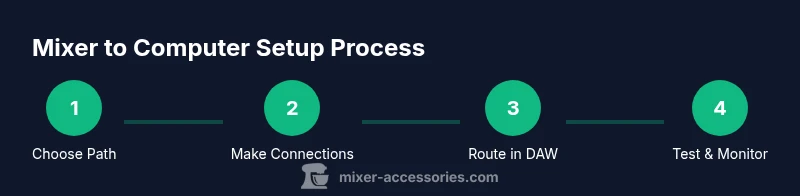
- Decide USB mixer vs interface based on your needs. 2) Gather mics, cables, and a computer or laptop. 3) Connect outputs to the computer and configure DAW input routing. 4) Install necessary drivers and test with a quick vocal take. 5) Enable monitoring and adjust levels. 6) Save a setup preset for future sessions.