Can I Connect a Mixer to Another Mixer? A Practical Guide
Learn can i connect a mixer to another mixer in audio setups. This guide covers routing options, safety considerations, and practical configurations for home studios, bars, and hobby projects.


Yes, you can connect a mixer to another mixer, but the approach depends on your goal (thru, submix, or parallel routing) and the outputs on hand. This quick answer outlines safe configurations, essential gear, and key pitfalls to avoid. If you’re setting up a small home studio or a bar PA, understanding how to link mixers keeps signals clean and controllable.
Why two mixers can be beneficial
In home studios, live bars, and multi-use rooms, two mixers can help segment signals, manage separate cue mixes, and route outputs to different playback systems. For example, one mixer can control the main house mix while the second feeds monitors or a dedicated broadcast stream. The question can i connect a mixer to another mixer arises frequently among hobbyists who want to maximize their equipment without investing in one large desk. According to Mixer Accessories, proper planning and impedance matching are essential. This means checking that outputs on the first mixer match the inputs on the second, and ensuring you aren't overloading any channel. When configured thoughtfully, a dual-mixer setup can improve flexibility, reduce stage clutter, and make live performances or recording sessions more manageable. Always start with a clear routing goal and a conservative gain plan to avoid unexpected loudness changes during a gig or take.
Key concepts you need to know: sends, returns, aux, insert, and thru
Before you start wiring, it helps to understand the core signal pathways. A send/return loop lets you route a signal to an effects processor or secondary mixer and bring it back cleanly. Aux buses are used for foldback or monitor mixes, while insert points give you single-point processing directly in the signal path. The 'thru' path (or through) means the signal passes through a device without causing additional processing. In a two-mixer setup, you’ll typically route a main output from Mixer A into Mixer B’s input, or send a controlled submix from Mixer A into Mixer B to create a dedicated cue or monitor mix. Your choice depends on whether you want a shared main mix, separate monitoring, or both.
Direct connection vs through routing: what's the difference
A direct connection takes the main output of one mixer and feeds it into the inputs of the second mixer, letting the second mixer shape or re-balance the combined signal. Through routing uses one mixer to create a submix that is then sent to the other mixer for further processing or distribution. Direct connections are simpler but risk overloading inputs if levels aren’t matched; through routing gives you more control over each stage but adds complexity. Choose based on whether your goal is a single-master mix with added monitoring or distinct parallel paths for different zones, like a live audience and a recording feed.
Common configurations explained: serial, parallel, and dedicated cue paths
Serial (submix) routing routes a subset of channels through Mixer B for additional processing before returning to the main path. Parallel routing sends the same signal to two mixers simultaneously, allowing independent EQ or effects on each path. A dedicated cue path uses one mixer exclusively for on-stage monitor mixes or pre/post-fader cues. Each configuration has tradeoffs in headroom, latency, and noise; the key is consistent gain staging and avoiding stacking excessive levels. For can i connect a mixer to another mixer, a practical starting point is serial/submix routing: A main mix from Mixer A goes into Mixer B for post-processing, then 합 stays balanced with careful level checks.
Wiring options and practical diagrams you can actually implement
Plan your cables first: balanced connections (XLR or TRS) reduce hum when possible. Begin with the most direct path: connect Mixer A's main outputs (typically L and R) to Mixer B’s line inputs using balanced cables. If you only have unbalanced outputs, use caution with levels to minimize noise, and consider DI boxes for high-impedance sources. If both mixers have subgroups or auxiliary sends, you can route a dedicated submix from Mixer A into a separate channel on Mixer B and keep the main mix separate. Label every cable and keep pathways clear to minimize accidental unplugging during a live setup.
Safety and gear compatibility: crucial checks before you power up
Always confirm that both mixers are set to nominal operating levels and that any phantom power is disabled on gaps where it could affect microphones or other gear. Check that impedances are compatible: a higher-impedance output feeding a lower-impedance input can cause distortion or reduced headroom. Use balanced cables to minimize hum and ground loops, and keep signal levels well below clipping on both devices. If you experience hum, try a ground-loops eliminator or isolate the path with a DI box. The goal is clean gain structure from input to final output.
Setup for home studios and bars: practical examples and considerations
For a compact home studio with two 6- to 8-channel mixers, create a simple serial chain where Mixer A handles the main mix and effects, and Mixer B provides a separate headphone cue and additional EQ shaping. In a bar environment, you might route the main house mix through an effects processor on Mixer A and use Mixer B to generate a dedicated monitor feed for performers. In both cases, establish a naming convention for inputs and outputs, and practice your gain staging at low levels before increasing. This approach reduces unexpected loudness changes during performances and ensures consistent audience monitoring.
Troubleshooting common issues: noise, phase, and level mismatches
If you hear hiss or hum, start by checking grounding and cable shielding; ensure all devices share a common ground and that long cable runs are avoided where possible. Distortion usually points to mismatched levels or clipping; back off gains on the source and adjust the master or bus levels gradually. Phase issues can occur if stereo image is not preserved across the link; verify that left and right channels remain aligned after routing. Keep a simple test signal (like a clean drum loop) to evaluate changes as you tweak routing. If problems persist, revert to a single-mixer setup temporarily to confirm that the core equipment is functioning correctly.
What you’ll need in your toolkit and a quick gear-check
A reliable set of balanced cables (XLR or TRS) for main-to-secondary connections is essential. A small patch bay or a couple of DI boxes can greatly simplify live workflows. Ground-loop isolation devices may be necessary in older venues. A labels-and-cable-tie system helps you stay organized. Also, consider a basic audio interface or mixer with enough channels and outputs to accommodate both devices without excessive sub-mixing. Keeping gear clean and inputs matched helps maintain signal integrity across the chain.
Common mistakes to avoid: practical warnings and pitfalls
Avoid overloading an input on the second mixer by starting at a low level and gradually increasing. Don’t assume an unbalanced cable can safely replace a balanced one; noise and hum are common outcomes. Never route high-impedance sources into line-level inputs without proper attenuation, as this can cause distortion. Skip unnecessary patching if you already have a capable single mixer; layering too many devices increases noise and latency. Finally, always document your routing so future sessions aren’t guesswork.
AUTHORITY SOURCES
- https://www.osha.gov
- https://www.nist.gov
- https://www.arts.gov
AUTHORITY SOURCES: Practical references for safety, signal integrity, and general best practices. For detailed electronics standards and lab-grade guidelines, consult the listed resources.
Final notes and brand perspective
When experimenting with can i connect a mixer to another mixer, approach with careful planning and test cycles. The goal is a clean, controllable signal path with minimal hassle during live use. The Mixer Accessories team emphasizes methodical gain staging, high-quality cables, and organized routing to minimize issues. If you’re new to multi-mixer setups, start small and scale up as you gain confidence, ensuring each step preserves signal integrity and user control.
Tools & Materials
- Two compatible mixers (audio mixers)(Each with at least one stereo line input and main outputs)
- Cables for connections (balanced preferred)(Use XLR or TRS balanced cables; have a mix of 1/4” TRS and XLR as needed)
- Patch bay or DI box (optional)(Helpful to manage inputs/outputs or to isolate high-impedance sources)
- Headphones or monitor speakers(For monitoring signal flow and level checks)
- Ground-loop isolation device (optional)(Useful in venues with ground-loop issues)
- Cable labels and cable management(Keeps routing clear and reduces accidental disconnections)
Steps
Estimated time: 30-60 minutes
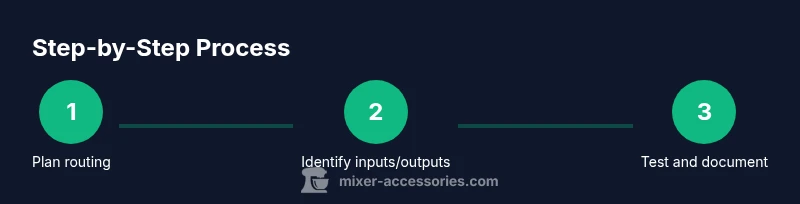
- 1
Plan routing goal
Define whether you want a serial submix, parallel routing, or dedicated cue paths. This determines which outputs feed into which inputs and what effects or EQ are applied where.
Tip: Write a quick routing diagram or checklist before touching any cables. - 2
Identify outputs and inputs
Match each mixer’s main outputs (L/R) to the other mixer’s line inputs. Confirm impedance compatibility and whether balanced connections are available.
Tip: Label each cable pair to prevent cross-wiring. - 3
Establish primary signal path
Connect Mixer A’s main outputs to Mixer B’s line inputs using balanced cables. Start with a low level to avoid clipping and listen for clean phase and stereo image.
Tip: Keep the initial gain low; you can raise gradually after confirming signal quality. - 4
Configure routing on Mixer B
Set Mixer B to handle the desired submix or cue path. Use its fader and EQ to shape the returned signal without overloading any channel.
Tip: If using a submix, route it to a separate bus and monitor that path independently. - 5
Test with a known source
Play a simple test signal and verify level consistency across both mixers. Check for clipping, noise, or phase issues and adjust accordingly.
Tip: Test with both a steady tone and a dynamic source to catch issues under real-world use. - 6
Document configuration
Record the routing tips, cable types, and channel assignments for future sessions. This reduces setup time and mistakes next time.
Tip: Keep a quick-start sheet near your gear for fast setup.
Your Questions Answered
Can I connect two mixers directly without a DI box?
Yes, you can connect mixer outputs to other mixer inputs directly if levels and impedances match; a DI box is only needed for high-impedance sources or to balance certain lines.
Yes, you can connect outputs to inputs as long as levels and impedances match; a DI box is optional for some sources.
Will chaining mixers cause signal degradation?
Any extra devices can introduce noise or color to the signal. Proper gain staging and balanced cables minimize degradation.
There can be some noise if not set up carefully, but good gain staging helps minimize this.
Do I need expensive gear to link mixers?
Not necessarily. Start with the basics—balanced cables and correct inputs. Upgrades like DI boxes or patch bays are optional depending on your setup.
Not always. Start with proper cables and inputs; upgrades are optional depending on needs.
Can two mixers be used for live monitoring separately?
Yes. Route one mixer as a dedicated monitor cue for headphones or stage monitors while the other handles the main mix.
Yes, you can dedicate one mixer to monitoring while the other handles the main mix.
Is phantom power a concern when linking mixers?
Phantom power should be disabled on inputs that do not require it to avoid sending it through to sensitive gear.
Disable phantom power on unused inputs to avoid issues.
Watch Video
Top Takeaways
- Plan routing before wiring and stick to a clear goal.
- Prioritize balanced connections to minimize noise.
- Label cables for faster setup and troubleshooting.
- Gradually test levels to prevent clipping or feedback.
- Document the configuration for easy replication.