How to Mix with YouTube: Practical Mixer Guide for Creators
Learn to mix audio and video for YouTube with a practical mixer workflow. Gear, signal flow, recording, editing, and best practices for home cooks, bar enthusiasts, and audio hobbyists.


Learn how to mix audio and video for YouTube with practical, hands-on steps. You’ll set up a basic mixer rig, capture clean voice and ambient sound, balance levels, and sync ahead of the edit. This guide covers gear, signal flow, recording, and post-production workflows for home cooks, bar enthusiasts, and audio hobbyists.
Why YouTube mixing matters
A well-balanced mix makes your YouTube videos clearer, more engaging, and easier to follow. When voices sit above background noise, viewers stay longer and are more likely to subscribe. For home cooks and bar enthusiasts, crisp vocal clarity plus tasteful ambient sound elevates recipe demos, cocktail tutorials, and product reviews. According to Mixer Accessories, focusing on signal quality from capture to final master helps you build a reliable workflow that scales as your channel grows. In practice, this means planning your mic placement, choosing the right mics for the room, and controlling loudness so music and effects don’t overwhelm speech. With YouTube’s platform rewarding watch time, a thoughtful mix is as important as the visuals. This section lays the foundations for a repeatable process you can apply to cooking shows, tasting sessions, or gear reviews.
Prerequisites and planning
Before you touch a dial, map out your goals for the video. Decide whether you want a dry, documentary style or a warm, cinematic vibe. Write down 3-5 key moments that must be audible: narration, steps, timers, and any foreground music or sound effects. Plan your mic setup around the room acoustics and the subject: a single loud voice requires tighter proximity; multiple speakers or audience laughs call for more separation. Create a simple shot list and sound checklist to reference during filming. This planning reduces the number of takes and helps you maintain a consistent loudness target, which is crucial for YouTube. A consistent baseline makes post-production faster and more predictable.
Gear and signal flow
Your signal flow describes how sound travels from mic to screen. Start with a microphone or two, connect to an audio mixer, route the mixer’s main output to your computer (via USB or audio interface), and feed a reference signal to your camera’s mic input if possible. A two-channel mixer works for most DIY setups, but if you plan on multiple guests or louder room sounds, a four-channel or USB-class compliant mixer gives you more control. Use balanced cables where possible to reduce hum and RF interference. The goal is clean, pluggable signal with minimal noise. When clocking, keep a loose headroom of about 3 dB to prevent clipping during loud moments.
Acoustics, room treatment, and mic placement
Acoustics play a huge role in YouTube mix quality. Soft furnishings, curtains, and rugs absorb reflections that cause muddy sound, while reflective hard surfaces can make voices harsh. Place the primary mic 6-12 inches from the source, angled slightly to avoid plosives. A secondary ambient mic can capture ambient room tone for a natural sense of space. Consider a pop filter or windscreen to minimize sibilance and plosives if you’re recording close to voice. Treating the room with simple DIY methods (curtains, carpets) improves intelligibility without breaking the budget. If you’re recording in a busy or echo-prone space, you may want to temporarily relocate to a smaller, quieter area or use portable acoustic panels.
Recording setup and workflow
Set your levels so the loudest speech peaks around -6 dB to -3 dB on your meters. Record a short calibration clip with one or two phrases that you can reference during editing. Use a separate track for each mic so you can adjust them independently in the DAW or video editor. Monitor with headphones to catch issues in real time—peaks, hiss, or background noise. Keep your camera and computer running with stable power, and enable tone or voice filters if your gear supports them. If you’re streaming live, enable a backup recording path to avoid data loss.
Editing, syncing, and mastering for YouTube
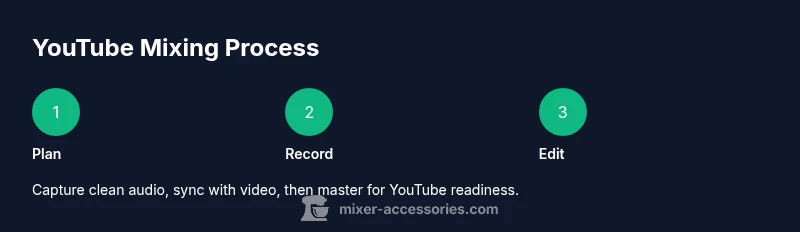
In post-production, align audio with video using a common timecode or a clap to sync quickly. Normalize levels across scenes, then apply subtle compression to keep dialogue consistent. Add gentle ambient music at low levels and ensure it never undercuts speech. Use equalization to carve out room for the voice—usually a gentle boost in the 2-4 kHz range improves clarity. Finally, render at YouTube-friendly settings (recommended bitrate and audio codec) and check the finished file on multiple devices to verify consistency.
Publishing, thumbnails, and viewer retention
Your YouTube success isn’t only about the edit; it’s also about how you publish. Craft clear titles and thumbnails that reflect the listening experience. In descriptions, provide a timestamped outline of topics and a short recipe or setup guide to encourage watch-through. Promote audience engagement by inviting comments, questions, or requests for future episodes. Consistency matters: publish on a regular cadence and respond to viewer feedback to improve future mixes.
Common mistakes and quick fixes
Common issues include overly loud music, uneven voice levels, and noisy backgrounds. Use a limiter or gentle compression to keep dialogue within a narrow dynamic range and pause background changes during dialogue. If you hear a hiss, switch to a balanced mic, turn off phantom power if not needed, and recheck cables. Test the final mix on headphones and a small speaker to catch problems not obvious on studio monitors. Small adjustments here save hours in post-production and improve perceived quality.
Tools & Materials
- Audio mixer (2-channel or more)(USB output preferred to connect to computer)
- Computer or laptop(For recording and editing)
- Microphones (dynamic or condenser)(At least one for voice; second mic optional for ambient or host)
- XLR or 1/4-inch cables(Balanced cables reduce hum)
- Headphones(For real-time monitoring)
- Camera or smartphone for video(Video source to pair with audio)
- Pop filter or windscreen(Reduce plosives)
- Lighting (optional)(Improves video quality)
- Video editing software(Post-production and encoding for YouTube)
- Audio editing software or DAW (optional)(e.g., Reaper, Audacity)
Steps
Estimated time: 2-3 hours
- 1
Plan your mix and shot list
Map out the video objectives and key moments where audio matters. Write a 3-5 item shot/list that includes narration cues, on-screen steps, and any music cues. This planning speeds up filming and editing and helps you maintain consistent loudness target.
Tip: Create a 60-90 second reference clip to lock in pacing and energy. - 2
Set up hardware and camera
Position the microphone(s) and camera to optimize both audio capture and framing. Ensure the mixer is powered, connected to the computer, and that the camera’s mic input (if used) has proper gain settings. Do a quick test recording to confirm levels before you start the shoot.
Tip: Use a dedicated mic for voice and another for ambient room tone when possible. - 3
Route signals and test levels
Connect mics to the mixer and route the main outputs to the computer. Create separate tracks if your DAW supports it for voice, ambience, and any music. Run a short test clip and adjust gain so the dialogue peaks around -6 to -3 dB.
Tip: Label tracks clearly to speed up editing. - 4
Record with monitoring
Put on closed-back headphones and monitor in real time. Watch for clipping, noise, or inconsistent levels as you speak. If necessary, pause and re-record sections rather than trying to fix in post.
Tip: Record a calibration phrase at the start. - 5
Sync audio to video in post
Import audio and video into your editor. Use a loud clap or a separate clap track to align the audio and video tracks. Trim silences and ensure voice levels stay consistent across scenes.
Tip: Enable snap-to-timecode or use automatic synchronization tools. - 6
Mix and master for YouTube
Apply light compression and an equalizer to voice, making it clear and intelligible. Keep ambient music at a low level so speech remains dominant. Render with YouTube-friendly settings and check playback on multiple devices.
Tip: Test on smaller speakers to ensure vocal clarity. - 7
Publish and optimize
Upload with a descriptive title and thumbnail. Add a timestamped outline in the description and engage viewers with a call to action. Schedule releases consistently to grow audience trust.
Tip: Publish on a regular cadence to build a routine for your audience. - 8
Review and iterate
Review viewer comments and analytics to identify where audio can be improved. Revisit your gear choices and room setup for future videos based on feedback.
Tip: Keep a running log of what works and what doesn’t for faster future production.
Your Questions Answered
Do I need an expensive mixer to start mixing for YouTube?
No—start with a simple 2-channel mixer or a USB audio interface. The goal is clear dialogue and controllable levels; you can upgrade gear gradually as your channel grows.
You can start with a basic mixer or USB interface to get good results. Upgrade later as you create more complex content.
Can I mix audio after recording video?
Yes. In post-production, you can adjust levels, apply compression, and balance music with dialogue. The key is to keep dialogue prominent and consistent.
Absolutely. Do the mixing in post; keep the voice clear and levels balanced.
What room setup helps reduce noise?
Choose a quiet room with soft furnishings or add DIY acoustic treatment like curtains and rugs. A closer mic and a windscreen also help reduce background noise.
Pick a quiet space with soft furnishings and consider a closer mic position to minimize room noise.
How long does it take to produce a YouTube mix?
Production time varies with complexity, but a well-planned 10-15 minute video often needs several hours of setup, recording, and editing.
Depends on complexity; plan for several hours for a finished mix.
Is it important to optimize for mobile playback?
Yes. Ensure audio remains clear on small speakers and that the loudness matches platform recommendations. Preview on a phone to confirm intelligibility.
Absolutely—test on a phone to ensure your mix still sounds good.
Watch Video
Top Takeaways
- Plan audio and visuals before shooting.
- Record clean, separate tracks for flexibility.
- Balance dialogue and ambient sound for clarity.
- Sync audio and video accurately in editing.
- Publish with YouTube-optimized settings.