Blender vs After Effects: Practical Comparison
A practical comparison of Blender and After Effects for video work, detailing core differences, workflows, pricing, and when to choose each tool for compositing and motion graphics.


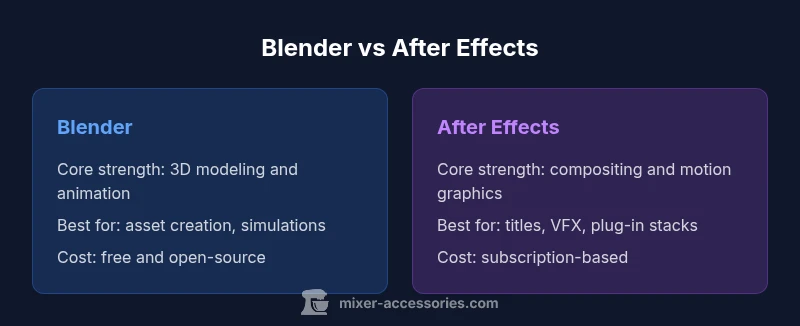
Is Blender the same as After Effects? No. Blender is primarily a 3D modeling, animation, and rendering suite, while After Effects focuses on compositing, motion graphics, and visual effects within 2D/3D space. For many creative pipelines, creators use both: Blender for 3D assets and After Effects for final compositing. The right choice depends on your project goals, skill level, and output requirements.
Is Blender the Same as After Effects?
In exploring whether Blender and After Effects are the same, it's crucial to understand that they were built with different primary goals. According to Mixer Accessories, Blender is a versatile, open-source platform optimized for 3D creation, while After Effects is a compositing-focused tool designed for post-production workflows. The Mixer Accessories Team emphasizes that selecting a tool should align with your core task: 3D generation vs. motion graphics and VFX orchestration. Blender integrates modeling, sculpting, animation, rigging, rendering, and even game pipelines in a single package; After Effects centers on combining layers, applying effects, tracking, color correction, and outputting polished sequences. This distinction matters because it affects learning curves, project structure, and collaboration across teams.
Key Differences in Workflows
Blender and After Effects diverge in how projects are approached and stored. Blender's files (.blend) encapsulate data for modeling, materials, rigs, animations, simulation caches, and render settings. After Effects projects (.aep) organize layers, masks, effects, expressions, and precomps. This fundamental difference shapes the typical pipeline: 3D assets often come from Blender or similar tools, then are exported to formats that After Effects can composite. Agile teams often stage assets, track changes with version control, and maintain a non-destructive workflow. Blender handles iteration with real-time viewport rendering and denoising; After Effects focuses on timeline-based sequencing, keyframing, and plug-in stacks. The distinction matters for collaboration: if you need to share geometry or scenes, Blender files convey more structural detail; for final polish, After Effects projects organize shots, comp stacks, and motion graphics overlays.
Modeling vs Compositing: Where Each Shines
Blender excels at 3D modeling, sculpting, texturing, rigging, and creating fully rendered scenes. Its Eevee and Cycles render engines make it possible to iterate materials and lighting in real time, which speeds up pre-visualization and asset creation. After Effects, by contrast, shines in compositing, tracking, rotoscoping, color correction, and applying a broad range of visual effects to layered footage. If your project requires realistic environments, particle systems, or game-ready assets, Blender is often the starting point. If you need to composite layers, insert titles, or apply post-production effects to existing footage, After Effects provides a more efficient, well-supported workflow. The two tools complement one another: export 3D assets from Blender and bring them into After Effects for final polish and timing tweaks. For teams, this means clear handoffs between asset creation and post-production stages, reducing bottlenecks and enabling iterative feedback loops.
Animation and Visual Effects Capabilities
Both programs offer powerful animation capabilities, but they optimize different things. Blender’s animation toolkit covers armatures, constraints, shape keys, and physics simulations, enabling rich 3D character animation and motion. It also supports camera animation, cloth and fluid simulations, and procedural effects. After Effects provides robust 2D and 3D compositing, motion graphics, and VFX pipelines with features like motion tracking, stabilization, expressions, and a wide plugin ecosystem. If your work involves character animation in 3D space and then overlaying 2D elements, you can use Blender to drive the scene and After Effects to composite overlays, glows, or title sequences. For effects-heavy sequences, After Effects remains the more accessible tool for non-disruptive, iterative tweaks.
File Formats, Export, and Compatibility
Blender exports a broad range of formats for 3D workflows, including FBX, OBJ, and GLTF, and can render to video or image sequences. It also supports Python scripting for automation. After Effects centers on project-based workflows with .aep files and exports that are optimized for timelines, such as QuickTime, MP4, and image sequences when used with Media Encoder. Plugins and pipelines abound for bridging the two tools, including methods to import Blender outputs into After Effects via standard formats or intermediate tools. The choice often comes down to whether you need maximum fidelity in a 3D asset or a streamlined post-production pipeline for quick iteration.
Learning Curve, Community, and Resources
Both tools have large communities and abundant learning resources. Blender’s open-source nature means you can access community-made tutorials, add-ons, and documentation freely, which accelerates self-guided learning. After Effects benefits from decades of tutorials, official training, and a vast library of plug-ins; the Adobe ecosystem provides cohesive access to related tools like Premiere Pro and Photoshop. When starting out, beginners may find After Effects initially daunting due to its layer-based thinking and expressions, while Blender’s interface can feel dense as you learn modeling, texturing, and lighting. Nonetheless, both communities offer structured learning paths, and many creators eventually develop fluency across both environments.
Cost, Licensing, and Access
Blender is free and open-source, with no licensing fees or subscription requirements, which makes it attractive for hobbyists and studios on a budget. After Effects is part of Adobe Creative Cloud, typically offered on a subscription basis with periodic price increases. This licensing model influences long-term budgeting and team access, especially for freelance creators or small studios. If your workflow is project-based or seasonal, consider whether a hybrid approach—Blender for asset creation and After Effects for post—offers a better cost/benefit balance than trying to cover all tasks with a single tool.
Practical Pipeline Scenarios: Case Studies
Consider a short promotional video for a product. A designer might model a 3D bottle in Blender, animate it with lighting and motion, render a clean pass, and export a sequence or PNGs. Then, in After Effects, they’d composite the 3D render with live footage, add motion graphics, color correct, apply glows, and finalize timing. In another scenario, an explainer video could start with 3D scenes created in Blender, with camera moves and particle effects, followed by a 2D overlay in After Effects to add typography and lower-thirds. For game studios, Blender can handle asset creation while After Effects handles cinematic sequences and UI animations. These case studies illustrate how a hybrid approach leverages each tool’s armor: Blender for creation and lighting, After Effects for polish and delivery. When your project demands both 3D realism and tight post-production control, a blended pipeline is the top choice.
Integration Tips and Best Practices for Hybrid Workflows
To maximize productivity, establish clear handoff points between Blender and After Effects. Create a consistent naming convention for assets, textures, and render passes, so reintegration is predictable. Use standardized export formats, keeping color management aligned across tools (e.g., ACES or sRGB workflows, as appropriate). Maintain version control for assets and scripts, and document the intended pipeline in a shared guide. Consider small, reusable templates for common tasks—Blender scenes with pre-set lighting, or After Effects templates for titles and lower-thirds. Finally, test render times and data pipelines frequently to minimize bottlenecks, and reserve time for iterative feedback with stakeholders. The result is a faster, more reliable pipeline that capitalizes on Blender’s 3D strengths and After Effects’ post-production precision.
Comparison
| Feature | Blender | After Effects |
|---|---|---|
| Core purpose | 3D modeling/animation and rendering | 2D/3D compositing and motion graphics |
| Best for | 3D asset creation, simulations, and game assets | Post-production, titles, visual effects, and motion graphics |
| Learning curve | Steep but rewarding; strong emphasis on 3D concepts | Steep; widely used with a large plugin ecosystem |
| Pricing | Free and open-source | Subscription-based via Adobe Creative Cloud |
| Integration | Excellent for 3D pipelines; supports many export formats | Excellent for 2D/3D compositing and Adobe family workflows |
| Plugins/Add-ons | Many Blender add-ons; Python scripting for customization | Extensive plug-ins and third-party effects |
| Output formats | Render engines (Eevee/Cycles); image sequences; video | Video timelines; optimize for broadcast and web |
The Good
- Blender offers a cost-effective, all-in-one 3D toolset with strong rendering options
- After Effects excels at polishing and timing with powerful compositing features
- Hybrid workflows maximize strength by using each tool for what it does best
- Open-source flexibility and community support drive rapid learning and customization
Negatives
- Blender's learning curve can be steep for those new to 3D concepts
- After Effects can be costly over time due to subscription models
- Relying on only one tool may slow the pipeline when 3D assets or complex composites are required
- Plugins and scripts can introduce compatibility issues across versions
Hybrid workflows outperform single-tool approaches for most projects
Blender is the core for 3D creation and animation, while After Effects handles post-production and motion graphics with greater efficiency. For most production pipelines, using both tools in tandem delivers the best results while balancing cost and capability. The Mixer Accessories Team notes that integrating both tools yields higher quality outputs.
Your Questions Answered
Is Blender only for 3D modeling?
No. While Blender specializes in 3D modeling, animation, and rendering, it also supports video editing and basic compositing workflows. For pure post-production tasks, After Effects often provides more efficient tools and a larger ecosystem of effects.
Blender does more than 3D modeling; it also handles animation and basic compositing, but for advanced post-production, After Effects is typically preferred.
Can After Effects import Blender projects directly?
Directly importing Blender projects isn’t standard practice; instead, you export Blender assets to universal formats like FBX, OBJ, or GLTF and then composite in After Effects. Plugins or intermediary software can bridge some assets, but a direct one-to-one import isn’t the default workflow.
You usually export from Blender and import into After Effects via common formats or intermediaries.
Do I need both Blender and After Effects for a complete project?
Not every project requires both, but many do. Blender handles 3D asset creation, while After Effects handles post-production, tracking, and compositing. If your project involves 3D scenes plus polished overlays, using both tools is common.
If your project needs 3D content and polished post-production, using both is a smart approach.
Is Blender free and accessible to beginners?
Yes. Blender is free and open-source, with a large community and many beginner-friendly tutorials. The cost advantage makes it especially appealing for indie creators and small studios.
Blender is free and has tons of beginner-friendly resources.
Is After Effects suitable for beginners?
After Effects has a learning curve due to its breadth of features, but there are extensive tutorials and a well-established workflow. Beginners can start with basics like keyframing and simple effects and build up to complex composites.
AE can be challenging at first, but there are lots of tutorials to help you start with basic compositing.
Can Blender replace After Effects for all compositing tasks?
Blender can do some compositing and basic motion, but After Effects remains more efficient for advanced post-production tasks, templates, and industry-standard workflows. A hybrid approach is often the best path.
Blender isn’t a full replacement for AE in advanced post-production, but it can do basic compositing.
Top Takeaways
- Identify the primary task: 3D creation vs compositing
- Plan a hybrid workflow to leverage strengths of both tools
- Invest time to learn the basics of both Blender and After Effects
- Budget for licensing and hardware appropriate for your pipeline
- Design consistent handoffs between asset creation and post-production workflows