Why is Blender So Laggy? A Practical Troubleshooting Guide
Urgent Blender lag troubleshooting guide to diagnose and fix performance issues. Learn a clear diagnostic flow, practical steps, and optimization tips for Blender lag relief on complex scenes.


If you're wondering why is blender so laggy, the most common causes are scene complexity, VRAM limits, and background processes. Start with easy checks: close nonessential apps, update Blender and GPU drivers, and enable GPU Compute. If lag persists, simplify the scene, lower subdivisions, and consider switching to Eevee for faster feedback while you optimize.
Why is Blender so laggy? Understanding the problem and impact
Why is blender so laggy is a question many artists ask when modeling, texturing, or animating. Lag usually stems from a mix of software overhead, hardware limits, and project setup. According to Mixer Accessories, performance pain points cluster around heavy scenes, large textures, and background tasks that steal CPU/GPU cycles. Recognizing the source early saves time and directs you toward the right fixes. In practice, you’ll find lag when the viewport can’t refresh at the frame rate you expect, or render operations take longer than anticipated. The goal is to identify whether the bottleneck is GPU-bound, CPU-bound, or memory-bound, and then apply targeted optimizations that yield immediate and observable gains.
Distinguishing Blender lag from other devices: software vs hardware realities
Lag in Blender isn’t the same as a sluggish kitchen blender. Here, the bottlenecks are computational: GPU VRAM, system RAM, CPU cycles, and disk I/O. A kitchen blender that struggles with ice isn’t a software problem, but in Blender the cure is usually software-configurable (like reducing subdivision levels) or hardware upgrades (more VRAM or faster GPU). This distinction helps you choose appropriate fixes and avoid overhauling your hardware for symptoms you can mitigate with settings first.
Quick baseline checks you can perform in 5 minutes
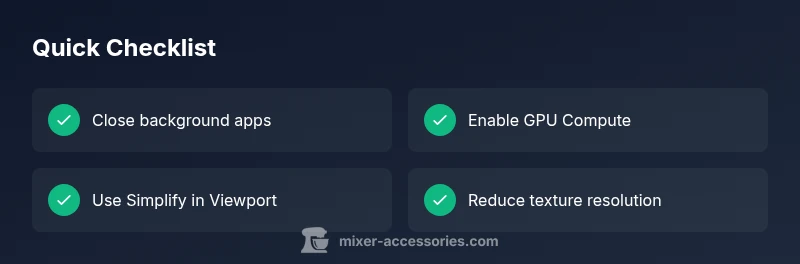
Before diving deep, perform a quick triage. Close all nonessential applications, check Blender's preferences for GPU compute, update graphics drivers, and ensure your project isn’t loading extremely high-resolution textures inadvertently. Switch to a simple scene and verify whether lag decreases. Disable add-ons temporarily to rule out plugin conflicts. These baseline checks often reduce lag dramatically without changing the core project.
Primary culprits: CPU, GPU, RAM, and VRAM limits
Blender performance hinges on hardware resources as much as software setup. If your scene uses large textures or heavy sculpting, VRAM may bottleneck the viewport. CPU limits appear with complex simulations or extensive modifiers. RAM shortfalls cause data swapping to disk, leading to stutters. Understanding these categories helps you prioritize fixes: reduce texture resolution, enable Simplify, or upgrade memory and GPU if you consistently max out resources.
Diagnostic workflow: symptom → diagnosis → solutions
A systematic diagnostic flow guides you from symptom observation to targeted fixes. Start with a clear symptom: slow viewport, long render times, or stall during playback. Map symptom to a likely cause (GPU memory, CPU load, or RAM). Apply a fix and re-test. If the problem returns, move to the next likely cause. This flow minimizes guesswork and accelerates relief.
Step-by-step: most common fix for heavy scenes or memory pressure
Step 1: Save, close extraneous apps, and enable GPU Compute in Blender. Step 2: In User Preferences > System, set GPU to your primary GPU and enable CUDA/OptiX if available. Step 3: In the Viewport, enable Simplify and reduce subdivision levels for your current view. Step 4: Switch to Eevee for interactive work and test performance; if cycles is necessary, lower samples and opt for denoising. Step 5: Optimize textures and compress assets to fit VRAM; finally, consider a hardware upgrade if needed. Tip: always test after each step to isolate the effective change.
Safety, maintenance, and professional help
Do not push hardware beyond its safe operating limits; ensure adequate cooling and power supply, especially during long sessions. Regularly update drivers, back up projects, and document changes. If Blender still lags after all optimizations, consult a professional technician or a Blender-focused support forum to review more advanced GPU configurations, driver conflicts, or unusual project-specific bottlenecks.
Steps
Estimated time: 60-90 minutes
- 1
Prepare your workspace
Save your project and close nonessential apps. Disable addons temporarily to rule out conflicts. This creates a stable baseline for testing performance changes.
Tip: Document your baseline FPS before changes to measure improvement. - 2
Enable GPU compute
In Blender > Preferences > System, enable CUDA/OptiX or your GPU option. This shifts rendering and viewport work to the GPU, which usually speeds up laggy scenes.
Tip: If you have multiple GPUs, select the primary one for viewport tasks. - 3
Adjust viewport settings
Turn on Simplify, reduce subdivision levels, and lower texture resolution for the viewport. This reduces memory usage and keeps interaction snappy.
Tip: Only apply these reductions to the viewport; keep final renders at full quality if needed. - 4
Switch render engine for workflow
If you mainly need interactive work, try Eevee for faster feedback. For final renders, you can switch back to Cycles with optimized sampling and denoising.
Tip: Test a frame render with Eevee and Cycles to compare speed and quality. - 5
Texture and asset management
Compress textures and resize large textures; remove unused assets. This reduces VRAM pressure and improves stability in large scenes.
Tip: Bake textures when possible to simplify real-time texture handling. - 6
Consider hardware upgrades
If lag remains after software optimizations, upgrading RAM or GPU with more VRAM is a practical path for persistent large scenes.
Tip: Check power supply and cooling before upgrading to avoid new bottlenecks.
Diagnosis: Viewport lag, slow interaction, or long render times in Blender
Possible Causes
- highHigh polygon count and large textures in active scene
- highOutdated or incompatible GPU drivers / Blender version
- mediumBackground processes consuming CPU/RAM
Fixes
- easyClose unnecessary background apps and disable heavy UI add-ons
- easyUpdate GPU drivers and Blender to the latest compatible versions
- easyEnable GPU Compute in Blender > Preferences > System and switch render engine to Eevee for speed
- mediumReduce scene complexity: lower subdivision levels, remove unused modifiers, bake simulations incrementally
- hardUpgrade RAM or GPU with higher VRAM if bottlenecks persist in large projects
Your Questions Answered
Why does Blender lag on a high-end PC?
Even on powerful machines, Blender can lag if scenes are overcomplex or VRAM is exhausted. Check textures, modifiers, and viewport settings; update drivers and Blender; and consider using Eevee for interactive work while optimizing for the final render.
On strong PCs, lag usually comes from complex scenes or VRAM limits. Start with texture and subdivision tweaks, then update your software.
How can I tell if VRAM is the bottleneck?
VRAM bottlenecks show as stuttering when moving in the viewport or extended render times. Monitor VRAM usage in your GPU utility and try lowering texture resolutions and viewport detail to reduce VRAM consumption.
You’ll see stuttering as VRAM runs out. Lower textures or simplify the scene to test.
Should I render with Eevee or Cycles to reduce lag?
For interactive work and lower lag, Eevee generally performs better. Cycles offers realism but can be slower. Use Eevee during iteration and switch to Cycles only for final renders with optimized settings.
Use Eevee for speed during development, switch to Cycles when you need higher realism for final renders.
Is upgrading RAM worth it for Blender work?
If you routinely load large scenes or simulations, increasing RAM helps prevent swapping to disk and smooths performance. Assess current usage with system monitors during fits and starts of your project.
RAM upgrades can help if you’re hitting memory limits during big projects.
When should I seek professional help?
If lag persists after all software optimizations and hardware checks, consult a hardware technician or Blender expert. There might be driver conflicts, BIOS settings, or project-specific bottlenecks that require deeper diagnostics.
If basic fixes don’t help, professional review can uncover intricate bottlenecks.
Watch Video
Top Takeaways
- Identify whether lag is viewport or render-related
- Prioritize GPU compute and viewport simplification first
- Keep Blender and drivers updated to reduce incompatibilities
- Gradually increase scene complexity only after optimization
- Upgrade hardware only if software optimization fails