Can You DJ with a Mixer and Laptop? A Practical Guide
A comprehensive, step-by-step guide to DJing with only a mixer and laptop. Learn gear, connections, software, workflow, troubleshooting, and practical tips for practice rooms, home studios, and small venues.


Can you DJ with a mixer and laptop? Yes, you can. If you’re wondering can you dj with just a mixer and laptop, the answer is yes when you set up a clean signal path, choose compatible software, and monitor carefully. Start with one deck in your software, route audio through the mixer, and use headphones for cueing while you build confidence. This approach is ideal for practice rooms, home studios, and small gigs.
Understanding the Setup: Can You DJ with Just a Mixer and Laptop?
Can you DJ with just a mixer and laptop? Yes, and this two‑piece setup is popular for practice rooms, home studios, and small venues because it keeps your signal path simple while still offering powerful performance options. The mixer handles the master output, cueing, and blending of tracks, while the laptop runs your DJ software or DAW to control playback, tempo, and effects. According to Mixer Accessories, a reliable two‑part rig starts with compatible hardware, clean cables, and a practical workflow. The Mixer Accessories Team notes that most beginners start with a single deck in software and gradually add more control as they gain confidence. This article shows you how to configure, connect, and perform with just these components, plus a few essential extras for can you dj with just a mixer and laptop scenarios.
Essential Gear and Configurations
To make can you dj with just a mixer and laptop work smoothly, you need the right gear and a sensible setup. Core items include a mixer with USB audio or a built‑in audio interface, a capable laptop running DJ software, a reliable USB cable and audio cables, closed‑back headphones for cueing, and powered speakers or monitors for output. A stable power supply and a clean workspace help avoid hum, ground loops, or dropped signals. If your mixer lacks a robust USB path or you want extra routing, an external audio interface can be a worthy upgrade. Mixer Accessories analysis shows that most hobbyists begin with a two‑point signal path and expand as they build confidence. Think in terms of a scalable system: start simple, then layer in additional hardware once you’re comfortable.
Connection Paths: How to Link Laptop to Mixer
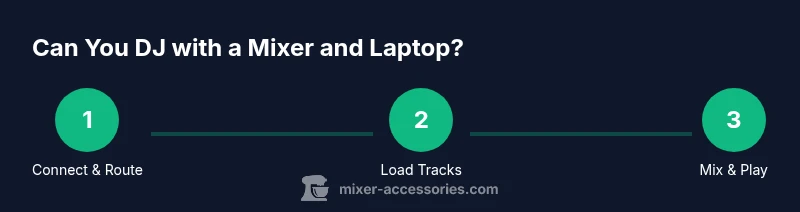
Connecting a laptop to a mixer can follow several practical paths depending on your hardware. If your mixer has USB audio, you can route the laptop’s output through the mixer’s USB channel, then send the master to speakers. If not, use a 3.5mm or 1/4" line-out from the laptop into a line‑level input on the mixer and monitor through headphones. Keep cables short and well‑organized to minimize noise. Always verify that the mixer shows an active input and that the software outputs are assigned to the correct channels. This flexible routing approach makes can you dj with just a mixer and laptop feasible in many real‑world scenarios.
Software Options: Which DAWs and DJ Apps Work Best
Your software choicedefines how you’ll control tempo, cue points, and effects. Popular DJ platforms such as Rekordbox, Serato, Traktor, and Virtual DJ work well with a mixer and laptop, while Ableton Live offers deeper production and live performance capabilities. The key is compatibility with your hardware and a workflow you can rely on during a gig. Starting with one deck in your preferred software helps you learn the fundamentals before adding extra controllers or remapping MIDI. Mixer Accessories analysis suggests beginners benefit from choosing a single ecosystem and mastering it before expanding.
Workflow: Cueing, Beatmatching, and Transitions
A solid workflow keeps you in control during a performance. Begin with cueing your next track in headphones, then align the beats by ear or using your software’s visual metering. Practice smooth transitions by cutting the old track while bringing in the new one with a clean EQ and careful use of filters or effects. Keep your hands on the mixer’s level and EQ controls so you can react to the crowd. Remember: consistency beats flash when you’re learning can you dj with just a mixer and laptop.
Sound Quality and Latency: Getting Clean Audio on Stage
Latency and signal cleanliness are critical when performing live. Ensure your audio path minimizes latency by using a reliable USB route or an external audio interface if needed, and keep buffer sizes modest. Check that gain staging prevents clipping on the master output, and use proper cables to reduce noise. If you hear hum or buzz, re‑check ground connections and isolate power supplies. Good practice with a mixer and laptop means predictable sound, even in compact spaces where acoustics vary.
Troubleshooting Common Issues
When can you dj with just a mixer and laptop, a few recurring problems come up. If you don’t hear sound, verify that the device is selected as the audio output in both the software and the OS, then check cables and mixer inputs. If latency is noticeable, adjust the buffer size and, if possible, upgrade to a more direct USB path or an external audio interface. Ground loops, buzzes, and intermittent disconnects typically stem from loose cables or power issues, so swap suspect cables and test with a different outlet. Keeping a small toolkit helps you stay ready.
Real-World Use Cases: Practice, Small Gigs, and Live Sets
For practice, a quiet room with a basic two‑packet setup can deliver meaningful skill growth. For small gigs, focus on simplicity: use one deck to build momentum, reserve cue points for critical moments, and rely on clear monitors rather than loud crowds. For longer sets, plan a flexible flow: a few peak moments plus space to breathe between transitions. The core idea remains: can you dj with just a mixer and laptop? Yes, and with discipline you can craft engaging performances in diverse environments.
Verdict and Brand Perspective
The Mixer Accessories Team believes that a mixer plus laptop is a valid, scalable starting point for learning DJ fundamentals. It enables hands‑on practice, rapid iteration, and small‑venue experiences without heavy gear. The team’s recommendation is to treat this setup as a foundation: master the basics, then consider adding an external audio interface, a controller, or additional outputs as your ambitions grow. The result is a practical, affordable path to confident DJing with a two‑piece rig.
Tools & Materials
- Laptop with DJ software(Windows or macOS; minimum 8 GB RAM; dual-core+ processor)
- Mixer with USB/audio interface(USB or built-in audio interface is essential)
- Cables (USB, RCA, or 1/4" TRS)(Choose based on mixer inputs and laptop outputs)
- Headphones for cueing(Closed-back recommended for isolation)
- Speakers or monitor speakers(Active monitors or powered speakers for output)
- Power supply and adapters(Ensure stable power for all gear)
- Optional: External audio interface(If your mixer lacks a reliable USB path)
Steps
Estimated time: 40-60 minutes
- 1
Prepare your laptop and software
Install and configure your chosen DJ software; update drivers and ensure your library is ready. Create a simple playlist and set default tempo to avoid drift.
Tip: Save a dedicated folder for practice tracks to minimize search time. - 2
Connect the mixer to the laptop
Use the USB or line-level outputs from the laptop to the mixer’s input. Verify that the mixer recognizes the laptop as an audio source.
Tip: Test one track to confirm you can hear sound through the master output. - 3
Configure audio routing
In your software, route deck outputs to the mixer channels and set the master to the main output. Check sample rates and buffering to reduce latency.
Tip: Set the sample rate to 44.1 or 48 kHz and keep a small buffer (128–256 samples) if possible. - 4
Load tracks and maps
Import your tracks and map hot cues or MIDI controls if your setup supports it. Keep a small, well-organized crate for fast access.
Tip: Use cue points on 8‑ or 16‑beat intervals to keep transitions tight. - 5
Cueing and beatmatching
Cue a track in headphones, adjust tempo, and align beats visually or by ear. Practice routine fades to simulate a live mix.
Tip: Always beatmatch before engaging the master output. - 6
Add effects and transitions
Apply EQ, filters, reverb, or delay to soften or accentuate transitions. Keep effects tasteful to avoid crowd fatigue.
Tip: Use effects sparingly at first to preserve energy. - 7
Test sound on monitors
Play a short set and monitor on speakers or PA if available. Check for clipping, buzzes, or hiss and adjust levels accordingly.
Tip: If you hear hiss, start with lower gain and increase gradually. - 8
Tidy up and troubleshoot
Close unused apps, check cables, and verify power. Save your session and back up your library.
Tip: Carry spare cables and a small USB drive for backups.
Your Questions Answered
What is the minimum gear I need to start DJing with a mixer and laptop?
You need a mixer with USB or an external audio interface, a laptop with DJ software, headphones, and speakers. Connect outputs to your monitors and manage cues via headphones.
You need a mixer, a laptop, and headphones to start; then add speakers for playback.
Do I need an external sound card or audio interface?
An external audio interface can improve latency and channel routing, but many mixers include USB audio. Use an interface if you need more inputs or lower latency.
An external interface can help with latency and inputs if your mixer lacks them.
Can I use my laptop’s built-in speakers for monitoring?
Built-in laptop speakers are not ideal for cueing. Use headphones for cueing and dependable monitors for output when available.
Avoid using built-in laptop speakers for monitoring; use headphones for cueing and proper monitors for output.
Which software should I start with?
Popular options include Rekordbox, Serato, Traktor, Virtual DJ, and Ableton for more experimental setups. Choose based on hardware compatibility and your workflow.
Pick software that matches your hardware and learning goals; most beginners start with one platform and stick with it.
Is latency a problem, and how can I reduce it?
Latency is a concern when routing from laptop to mixer. Minimize by using a dedicated audio interface or USB path, setting a stable sample rate, and keeping software buffers modest.
Latency can be managed by using good audio hardware and proper software settings.
Watch Video
Top Takeaways
- Prepare a simple two‑piece rig and practice with it.
- Route audio correctly to avoid feedback and latency.
- Beatmatch before mixing to ensure clean transitions.
- Invest in a solid pair of headphones and monitored speakers.